
Customise the live chat widget
Change the colour, greeting, reply time, availability, allowed domains and features of your EngageOne website live chat widget.
On this page
Every website inbox in EngageOne has its own widget, and you can change how it looks and behaves without touching your website code.
Where to find the widget settings
- Go to Settings → Inboxes.
- Find your website inbox and open its settings.
- Use the tabs at the top of the page. Each tab controls a different part of the widget.
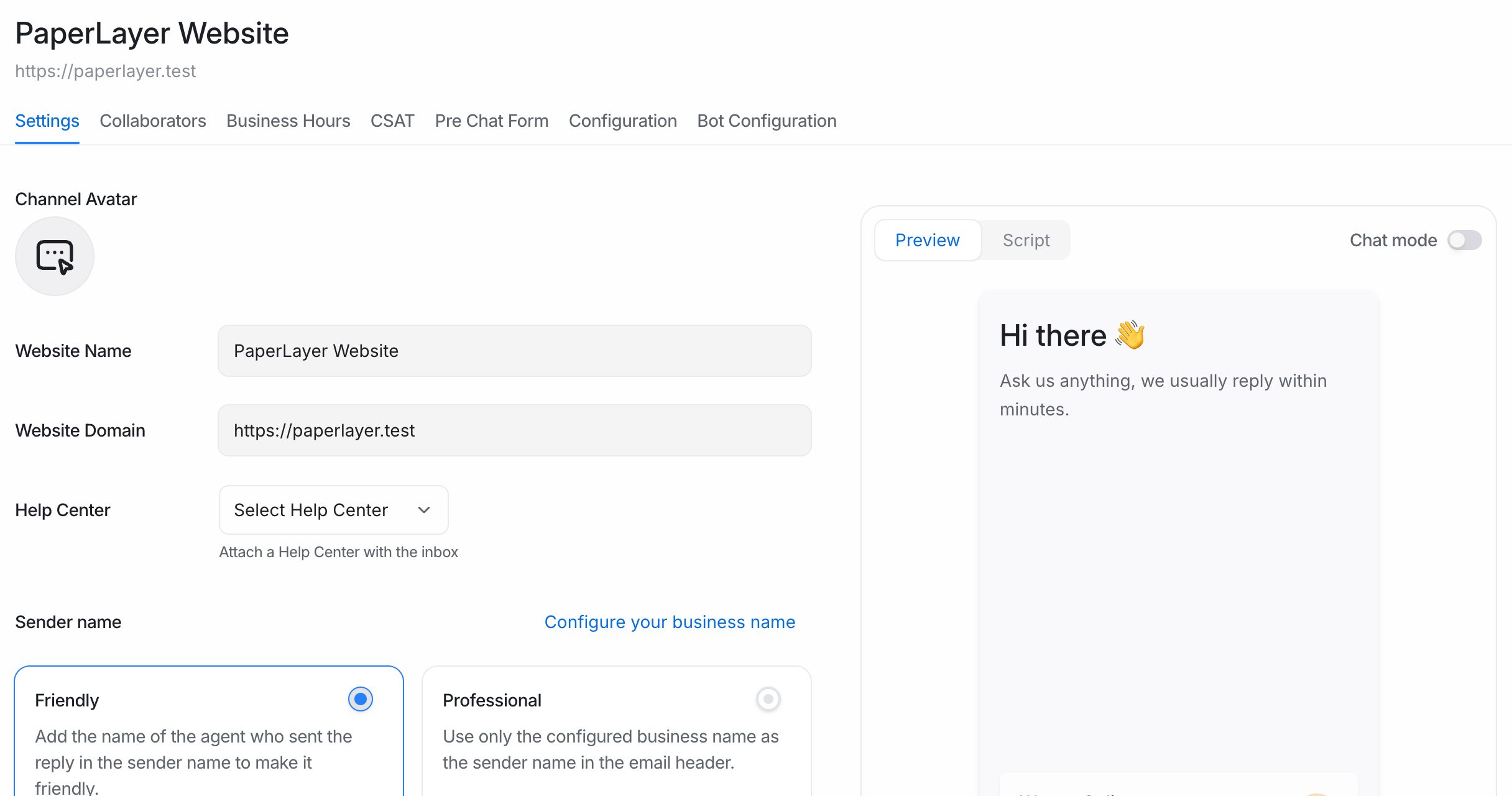
| Tab | What you change there |
|---|---|
| Settings | Inbox name, website domain, colour, welcome text, reply time, launcher bubble, greeting message, widget features and email options, with a live preview and the install script on the right |
| Collaborators | Which agents can see and reply in this inbox |
| Configuration | Allowed domains and identity validation |
| Business Hours | When your team shows as available |
| CSAT | Satisfaction surveys after a conversation is resolved |
| Pre Chat Form | Questions visitors answer before they start chatting |
Note: Changes you save apply to the widget on your website straight away. You do not need to reinstall the script.
Change the look of the widget
The Settings tab shows a live preview of the widget on the right, so you can see each change before you save it.
- Open Settings → Inboxes, select your website inbox and stay on the Settings tab.
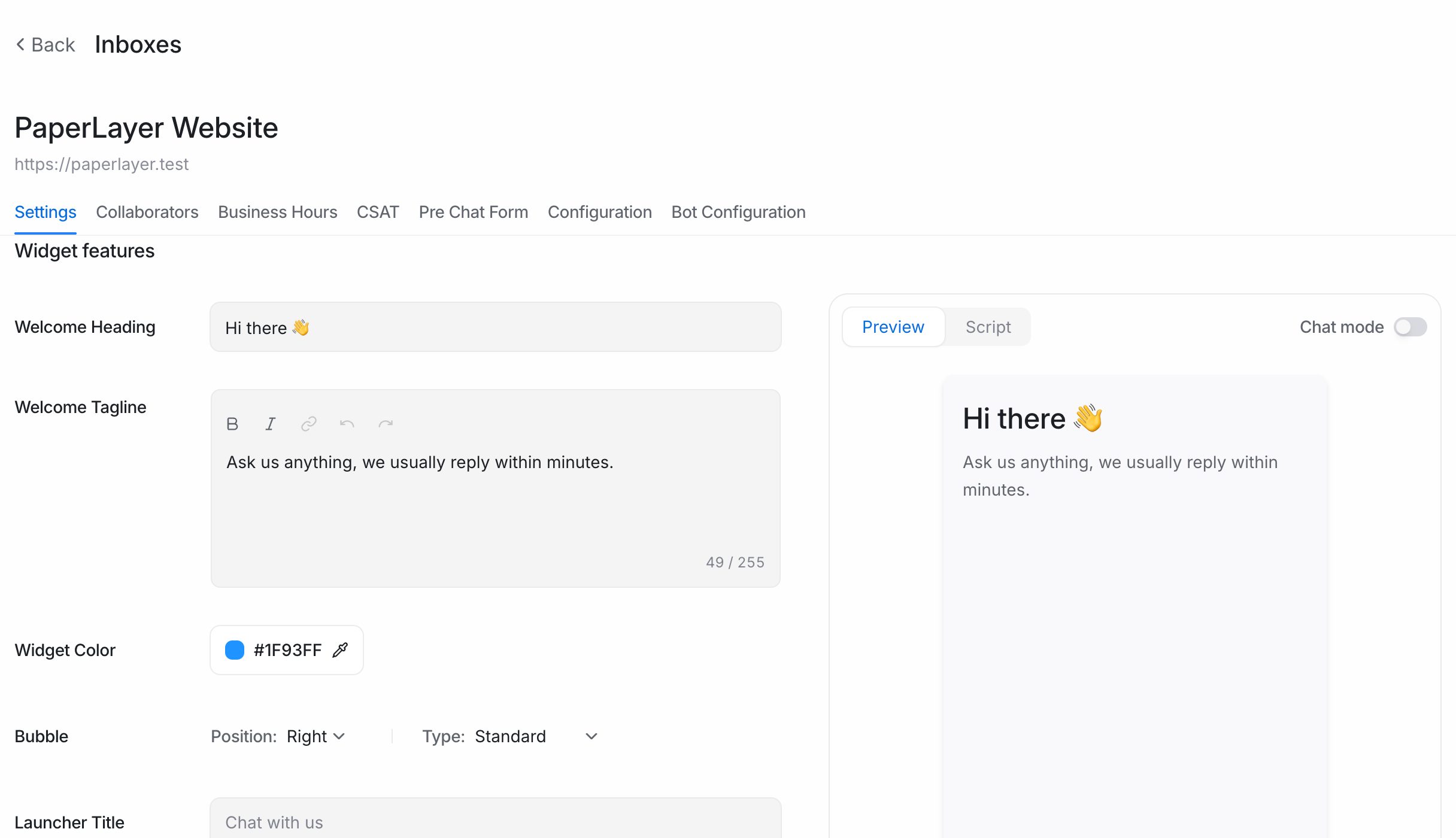
- Fill in the fields you want to change:
| Field | What it does |
|---|---|
| Website Avatar | The image shown at the top of the widget. |
| Website Name | Your business or website name, shown in the widget header. |
| Welcome Heading | The large greeting, for example "Hi there!". |
| Welcome Tagline | One or two lines under the heading that tell visitors what to expect. |
| Reply Time | Sets the "Typically replies in…" text. Choose In a few minutes, In a few hours or In a day. |
| Widget Color | The main colour for the bubble, header and buttons. |
| Bubble → Position | Shows the chat bubble on the Left or Right of the page. |
| Bubble → Type | Standard shows a round icon. Expanded Bubble shows a wider button with text. |
| Launcher Title | The text on an expanded bubble, for example "Chat with us". |
- Switch between Preview and Script above the preview to see the widget or the matching settings code.
- Click Update Widget Settings.
Tip: Pick a widget colour with good contrast against white text. Visitors read the header and buttons on top of this colour.
Set a greeting message
A greeting message is sent automatically when a visitor starts a conversation and sends their first message.
- Open your website inbox and click the Settings tab.
- Turn on Enable channel greeting.
- Type your message in Channel greeting message, for example "Thanks for reaching out. We usually reply within a few minutes."
- Click Update.
Show when your team is available
By default, the widget shows "We are Online" when at least one agent in the inbox is online, and "We are away at the moment" when nobody is.
You can show fixed working hours instead:
- Open your website inbox and click the Business Hours tab.
- Turn on Enable business availability for this inbox.
- Choose your time zone in Select timezone.
- Under Set your weekly hours, turn each day on or off and set its hours. You can also mark a day as All-Day.
- Write an Unavailable message for visitors. Visitors see this outside your working hours.
- Click Update business hours settings.
Visitors can still leave a message outside your hours. Your team sees it the next time they log in.
Note: Business hours also control away messages on other channels. See Business hours and away messages.
Turn widget features on or off
- Open your website inbox and click the Settings tab.
- Find the Features section and tick the options you want:
| Option | What it does |
|---|---|
| Display file picker on the widget | Lets visitors attach files and images. |
| Display emoji picker on the widget | Shows an emoji button in the message box. |
| Allow users to end conversation from the widget | Lets visitors close the chat themselves. |
| Use inbox name and avatar for the bot | Shows the inbox name and avatar on bot replies instead of the bot's own. |
- Click Update.
Other options on the Settings tab
| Option | What it does |
|---|---|
| Website Domain | The website where you use this widget. |
| Enable email collect box | Asks visitors for their email address when they start a new conversation. |
| Enable conversation continuity via email | If you have the visitor's email, replies they miss in the chat are also sent by email, and they can reply from their inbox. |
| Allow messages after conversation resolved | Lets visitors keep writing after a conversation is resolved. |
| Help Center | Attaches one of your help centers to this inbox. |
Limit which websites can show the widget
By default, anyone who copies your script could load your widget on another site. Use allowed domains to stop that.
- Open your website inbox and click the Configuration tab.
- In Allowed Domains, enter your domains separated by commas, for example
example.com, www.example.com, app.example.com.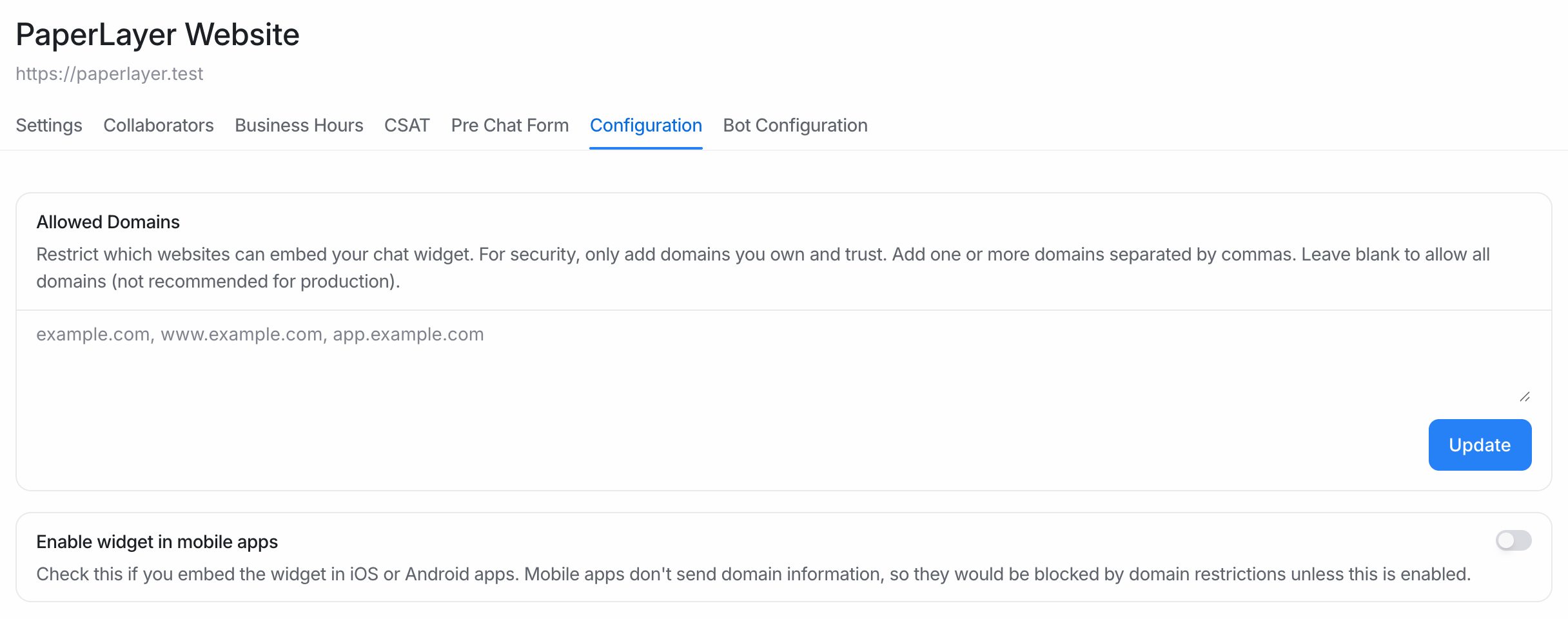
- If you also show the widget inside an iOS or Android app, turn on Enable widget in mobile apps. Mobile apps do not send domain information, so they would otherwise be blocked.
- Save your changes.
Important: Leaving Allowed Domains empty allows every domain. Add your domains before you go live.