
Custom attributes
Store extra details on contacts and conversations in EngageOne, such as plan, order ID or sign-up date, and use them in forms, filters and automations.
On this page
Custom attributes let you save details that EngageOne does not track by default, such as a customer's plan, an order number or a renewal date.
Contact, conversation or company
When you create an attribute, you choose what it Applies to:
| Applies to | Use it for | Example |
|---|---|---|
| Contact | Facts about the person that stay the same across chats | Plan, customer ID, sign-up date |
| Conversation | Facts about one chat only | Order number, issue type |
| Company | Facts about the contact's company, where companies are available on your account | Industry, account size |
Create a custom attribute
- Go to Settings → Custom Attributes → Add Custom Attribute.
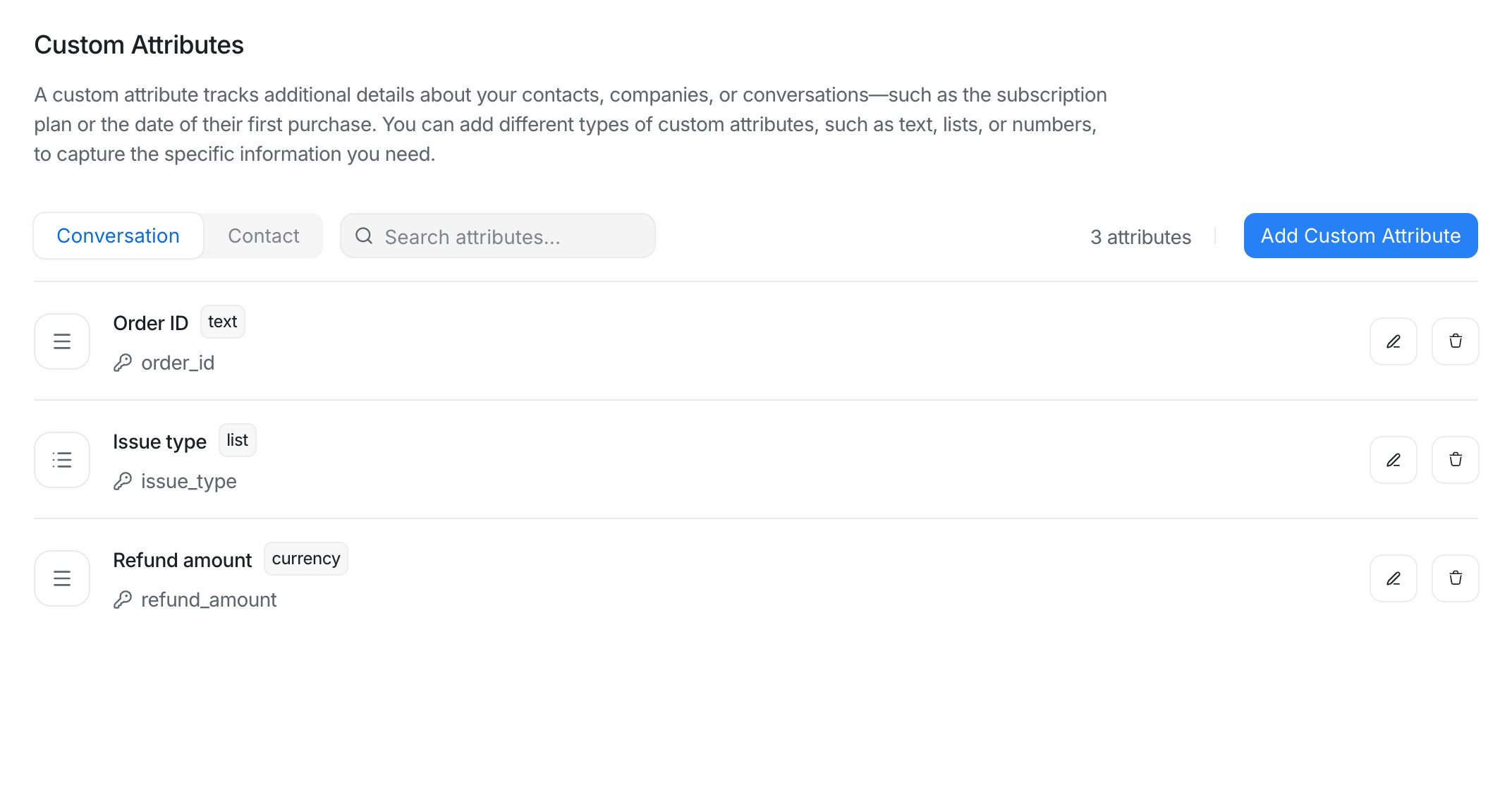
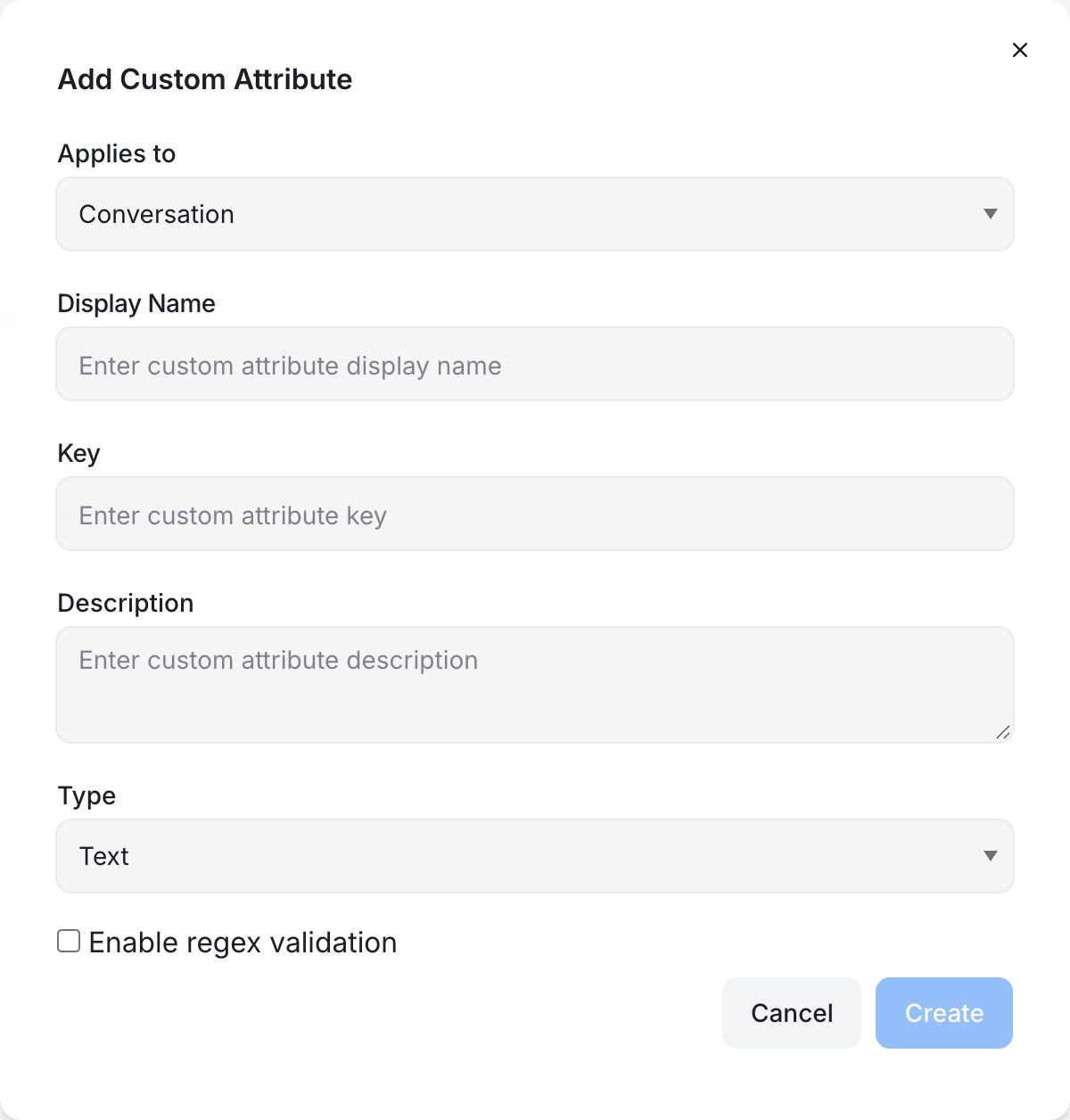
- Fill in the form:
| Field | What to enter |
|---|---|
| Applies to | Contact, Conversation or Company. |
| Display Name | The name agents see, for example "Subscription plan". |
| Key | The internal name used in code, filters and variables, for example subscription_plan. It is suggested from the display name. |
| Description | A short note about what to store here. |
| Type | The kind of value (see below). |
- Click Create.
Important: Choose the key carefully. Your website code, pre-chat forms, automations and message variables all refer to the attribute by its key.
Attribute types
| Type | What agents enter |
|---|---|
| Text | Any text. |
| Number | A number. |
| Link | A web address. |
| Date | A date picked from a calendar. |
| List | One option from a list you define. Type each value under List Values and press Enter. |
| Checkbox | Yes or no. |
Validate text with a pattern
For Text attributes, you can tick Enable regex validation and add:
- Regex Pattern: the format the value must match, for example
^ORD-[0-9]{5}$for order numbers. - Regex Cue: a hint shown when the value does not match, for example "Use the format ORD-12345".
Fill in attribute values
Agents can add or change values while they work:
- Open a conversation.
- In the right-hand details panel, open Contact Attributes for contact attributes, or Conversation Information for conversation attributes.
- Click an attribute, enter the value and save.
You can also open Contacts, select a contact and edit its attributes on the Attributes tab.
Values can also come in automatically from:
- Pre-chat forms on your website widget. See Pre-chat forms.
- Your website code, using the widget SDK. See Identify logged-in users.
- The API, if you connect your own systems.
Require attributes before resolving
You can ask agents to fill certain conversation attributes before they resolve a chat.
- Go to Settings → Conversation Workflow.
- Under Attributes required on resolution, click Add Attributes and choose the attributes.
- Save your changes.
When an agent resolves a conversation with one of these attributes empty, EngageOne asks them to fill it in first.
Note: This option depends on your plan. If you see an upgrade message, contact your account administrator.
Where custom attributes are used
| Feature | How it uses them |
|---|---|
| Conversation filters | Filter conversations by attribute value. |
| Contacts and segments | Filter contacts and save segments. |
| Automations | Use attribute values as conditions. |
| Canned responses | Insert values with variables such as {{contact.custom_attribute.plan}}. |
Edit or delete an attribute
- Go to Settings → Custom Attributes.
- Choose the Conversation, Contact or Company tab.
- Click Edit or Delete next to the attribute.
Important: Deleting an attribute can break filters, automations and website code that use its key.