
Invite your team
Add agents and administrators to EngageOne, give them access to the right inboxes, and manage or remove team members later.
On this page
This article shows administrators how to invite colleagues to EngageOne and give them access to the conversations they should handle.
Before you start
- Only administrators can invite people.
- Decide which role each person needs. In short, administrators can change settings, and agents reply to customers. See Roles and permissions.
- Your plan may limit how many agents you can add. If you reach the limit, EngageOne shows a message; contact Driansh to add more seats.
Invite a team member
- Go to Settings → Agents.
- Click Add Agent.
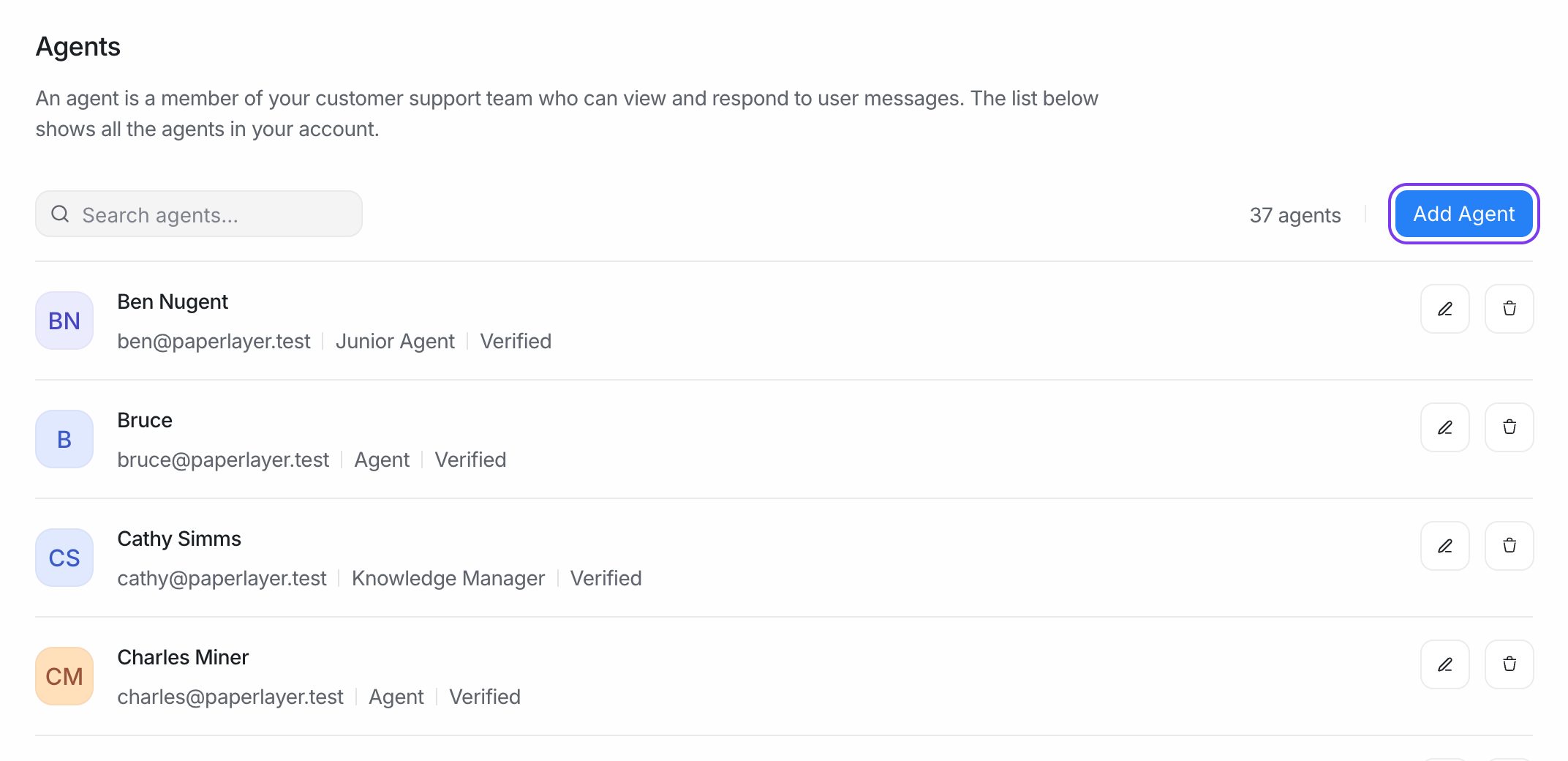
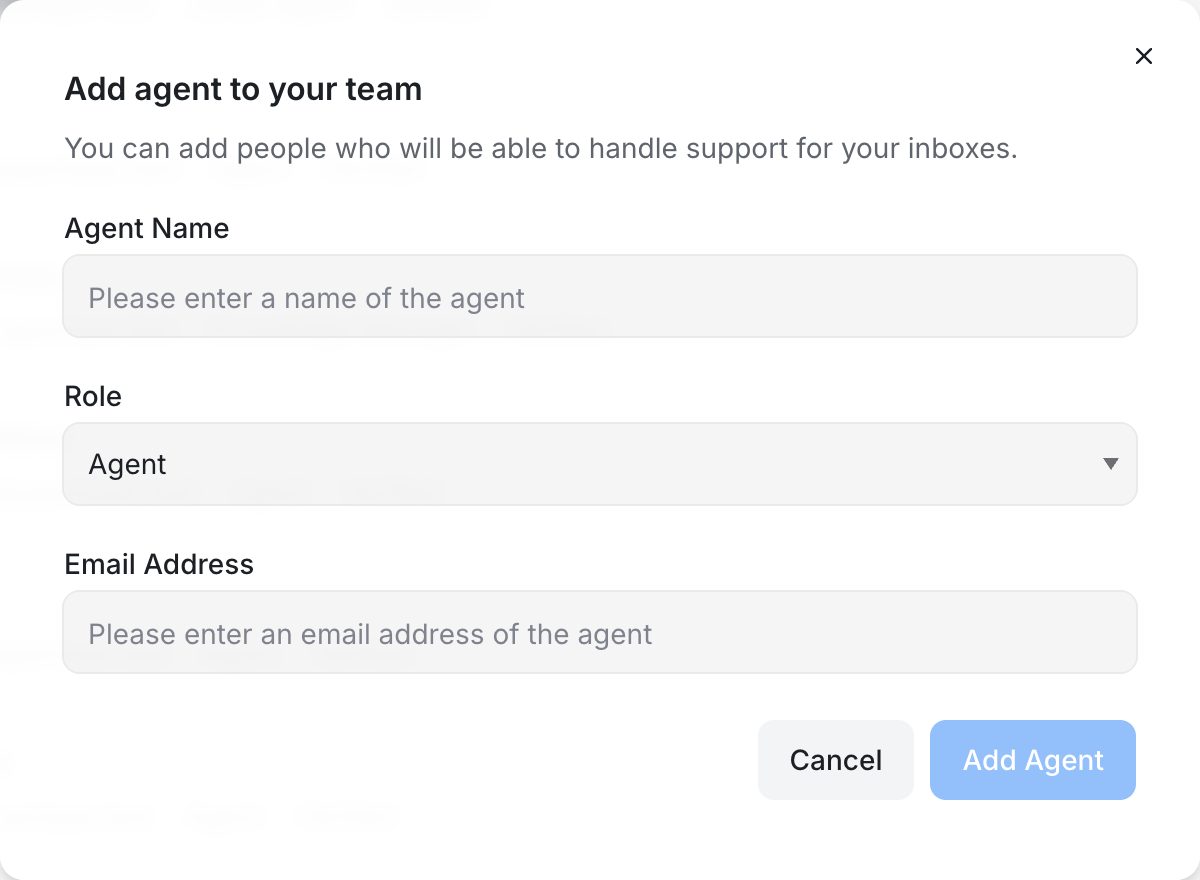
- Fill in the form:
- Agent Name – the person's full name.
- Role – Administrator, Agent, or a custom role if your account has them.
- Email Address – the work email they will sign in with.
- Click Add Agent.
EngageOne sends the person an invitation email. In the agent list, their status shows Verification Pending until they open the email, confirm their address and set a password. After that, the status changes to Verified.
Tip: If the invitation doesn't arrive, ask the person to check their spam folder. You can also open the agent with Edit and click Reset Password to send a fresh email with a link to set their password.
Give access to inboxes
New team members can't see any conversations until they are added to at least one inbox. Administrators see all inboxes automatically.
- Go to Settings → Inboxes.
- Open the inbox you want to share, such as your website chat or WhatsApp inbox.
- Open the Collaborators tab.
- In Agents, select the people who should handle this inbox.
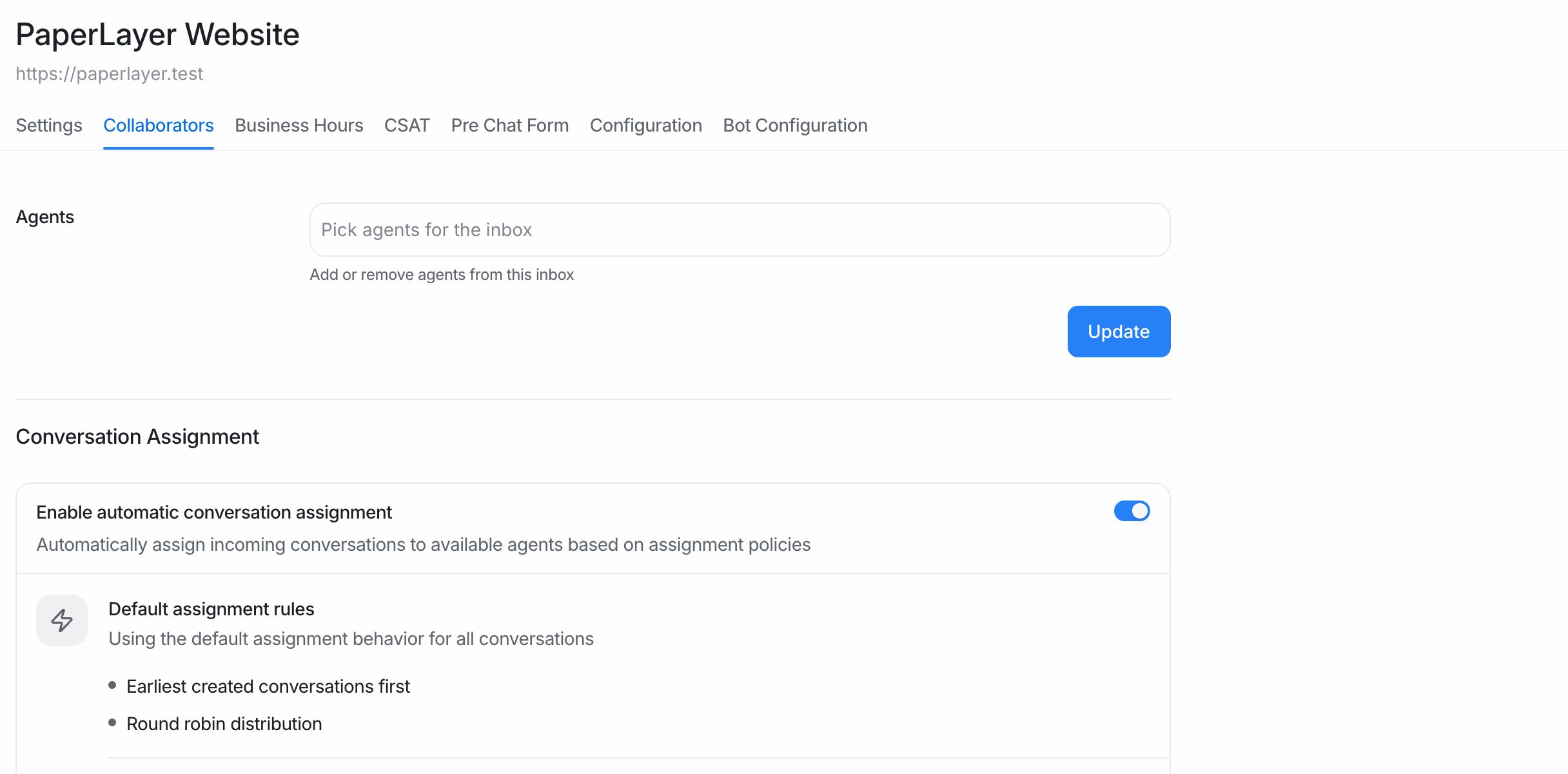
- Click Update.
Repeat this for each inbox the person needs.
Note: On the same tab you can turn on Enable auto assignment. When it is on, EngageOne shares new conversations from this inbox among the inbox's agents who are online.
Add people to teams (optional)
If you organise work by department, add the person to one or more teams so conversations assigned to that team reach them. See Teams.
Change a team member's details or role
- Go to Settings → Agents.
- Find the person (use Search agents... if your list is long) and click Edit.
- Change the Agent Name, Role or Availability.
- Click Edit Agent to save.
Remove a team member
- Go to Settings → Agents.
- Click Delete next to the person.
- Confirm the deletion.
The person loses access to your account straight away. EngageOne also removes them from all inboxes and teams, and any conversations assigned to them become unassigned. Messages they already sent stay in the conversation history.
Important: After you remove someone, check the Unassigned tab in Conversations so their open conversations are picked up quickly.
What your new teammates should do first
Share these steps with each new person:
- Accept the invitation email and set a password.
- Upload a photo and set a display name in Profile settings.
- Choose how they want to be notified about new conversations.
- Set their availability to Online when they start work.
All of this is covered in Profile and notifications.