
Canned responses
Save reply templates in EngageOne and insert them in any conversation by typing / and a short code. Personalise them with variables.
On this page
Canned responses are saved replies for questions you answer often. Instead of typing the same text again, you insert it with a short code.
Create a canned response
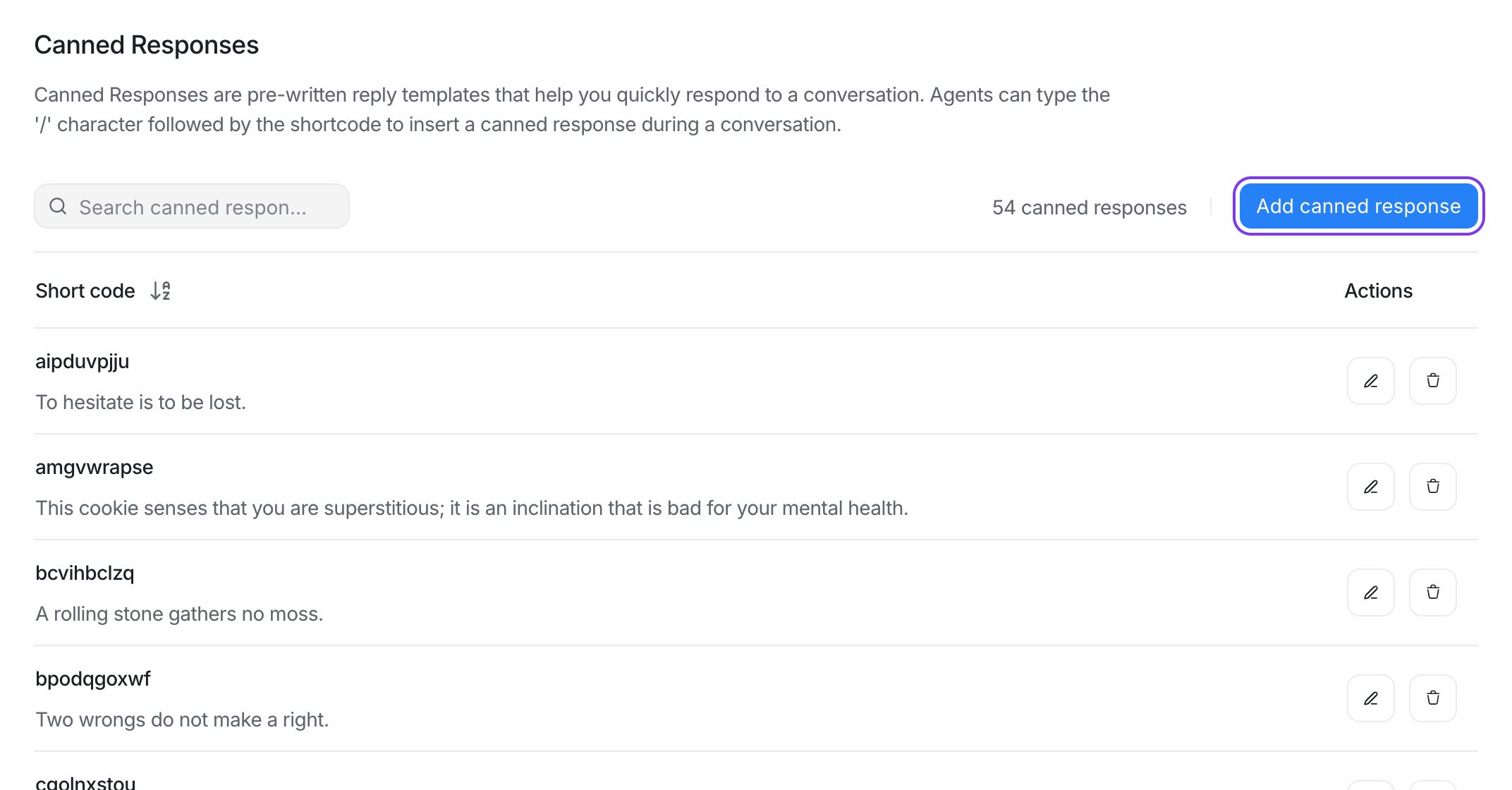
- Go to Settings → Canned Responses → Add canned response.
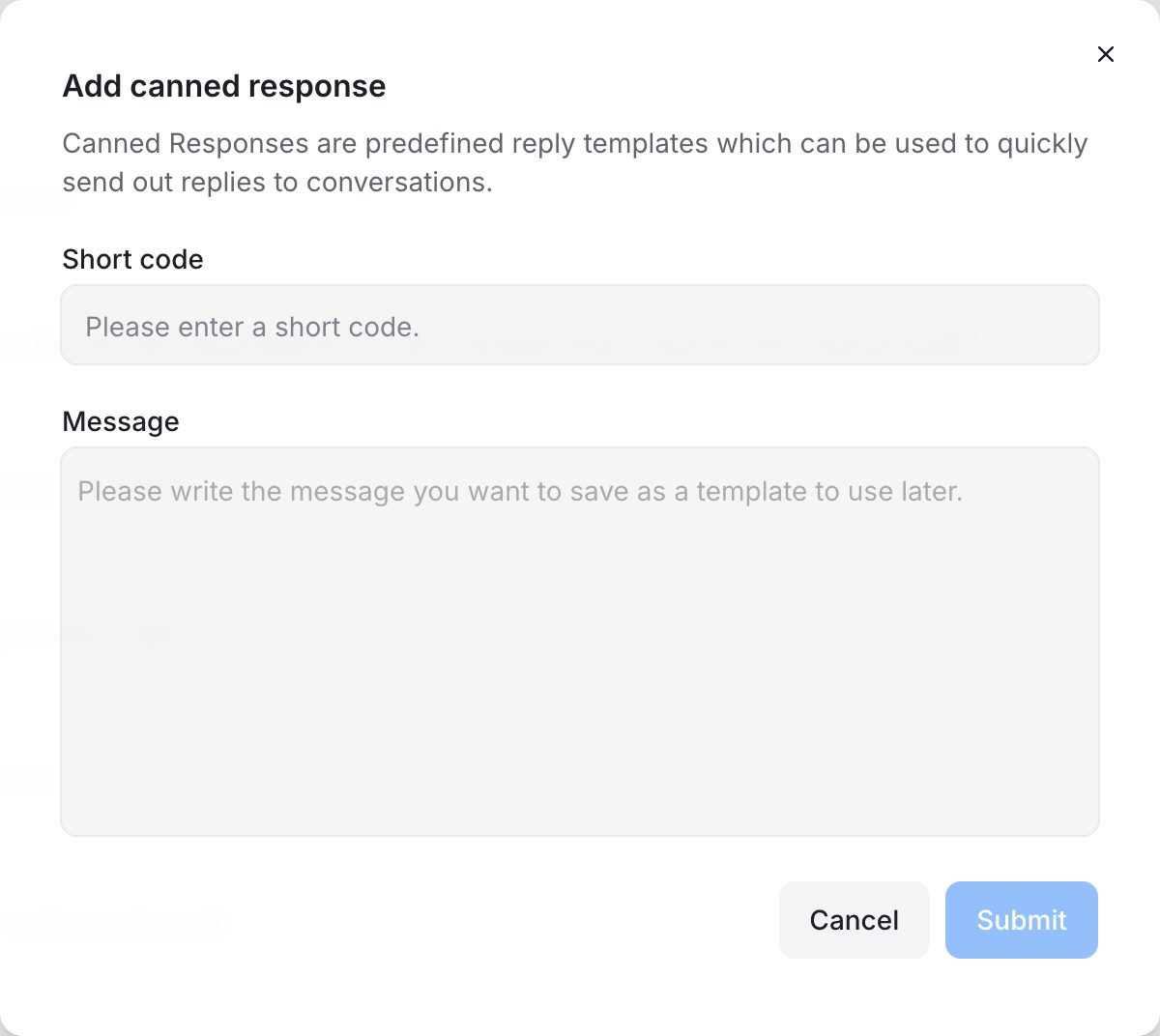
- Fill in the form:
| Field | What to enter |
|---|---|
| Short code | A short, memorable word, such as refund or hours. |
| Message | The full reply text. |
- Click Submit.
Canned responses are shared across your account, so every agent can use them. Each short code must be unique.
Use a canned response in a conversation
- Open a conversation and click in the reply box.
- Type
/followed by the start of the short code, for example/ref. - Choose the response from the list that appears.
- Edit the text if you need to, then send.
Note: The
/shortcut works in the Reply tab. It does not open the list while you are writing a Private Note.
Personalise with variables
Add variables to fill in details automatically. Wrap each variable in double curly braces. EngageOne replaces them with real values when the message is sent.
Hi {{contact.first_name}}, thanks for contacting us.
I'm {{agent.first_name}} and I'll help you with your order today.
| Variable | Replaced with |
|---|---|
{{contact.name}} |
Contact's full name |
{{contact.first_name}} |
Contact's first name |
{{contact.last_name}} |
Contact's last name |
{{contact.email}} |
Contact's email |
{{contact.phone}} |
Contact's phone number |
{{contact.id}} |
Contact ID |
{{agent.name}} |
Your full name |
{{agent.first_name}} |
Your first name |
{{agent.last_name}} |
Your last name |
{{agent.email}} |
Your email |
{{conversation.id}} |
Conversation ID |
{{inbox.name}} |
Inbox name |
{{inbox.id}} |
Inbox ID |
You can also use a contact or conversation custom attribute by its key:
Your plan is {{contact.custom_attribute.plan}}.
Order reference: {{conversation.custom_attribute.order_id}}
Note: If EngageOne can't find a value for a variable, it asks you to confirm before sending, so you can fix the message first.
Edit or delete a canned response
- Go to Settings → Canned Responses.
- Find the response. Use the search box to filter by short code or text.
- Click Edit to change it, or Delete to remove it.
Tips
- Keep short codes simple and lowercase so they are easy to remember.
- Write responses in a friendly, neutral tone. Agents can personalise them before sending.
- Review your list every few months and remove replies that are out of date.