
Connect your Instagram professional account so Direct Messages, story replies and mentions arrive in EngageOne for your team to answer.
On this page
An Instagram inbox brings the Direct Messages sent to your Instagram profile into EngageOne, so your team can answer them from one place.
How it works
- A customer sends a Direct Message to your Instagram profile.
- Meta forwards it to EngageOne.
- EngageOne opens a conversation and creates the contact with the customer's Instagram name.
- An agent replies in EngageOne, and the reply arrives in the customer's Instagram inbox.
- When the customer reads it, EngageOne marks the message as read.
Messages you send from the Instagram app also appear in the EngageOne conversation.
Before you start
- Use an Instagram professional account (Business or Creator).
- Your EngageOne installation must have an Instagram app connected. If the Instagram tile is greyed out in Add Inbox, ask your EngageOne administrator.
Set up
- Go to Settings → Inboxes → Add Inbox → Instagram.
- Select Continue with Instagram.
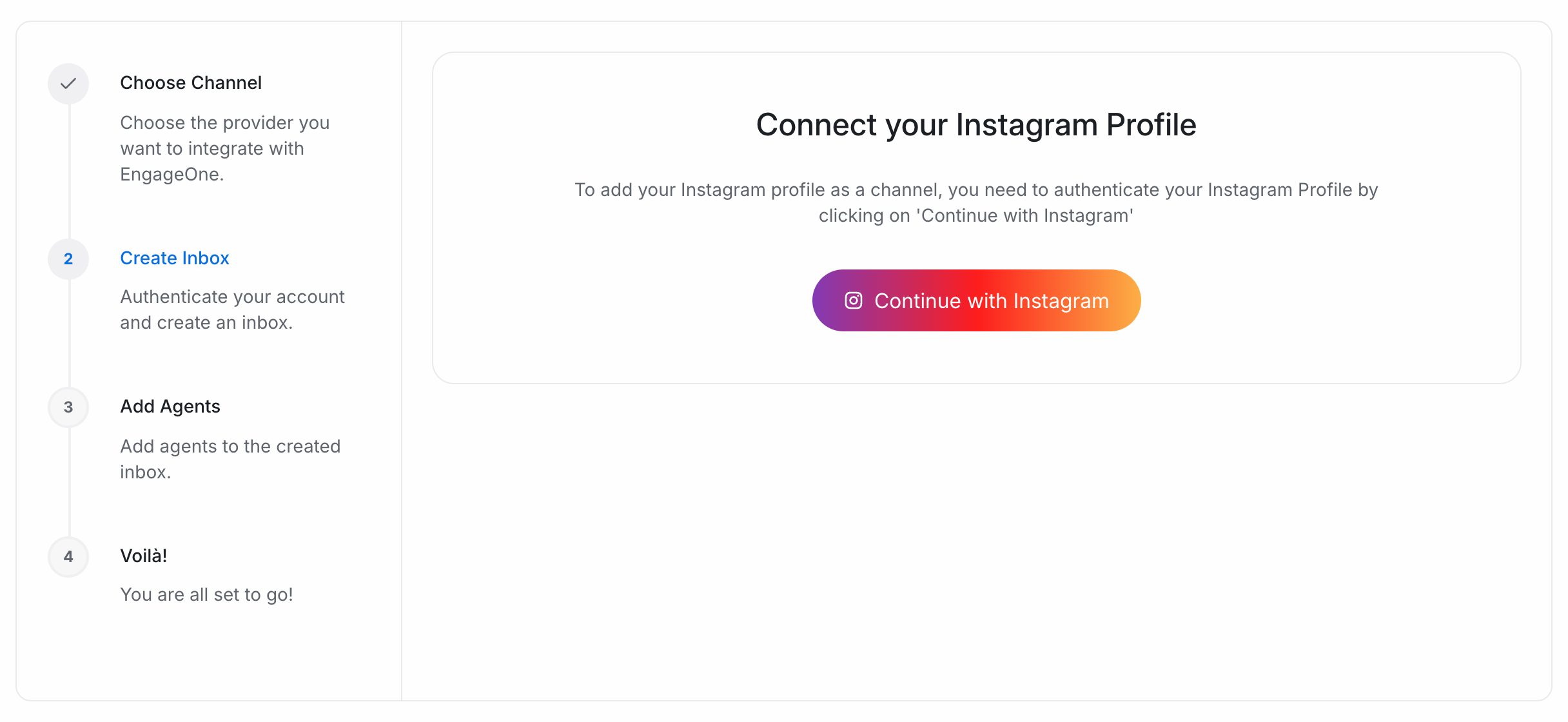
- Sign in to the Instagram profile you want to connect and allow the requested access.
- EngageOne creates the inbox and names it after your Instagram username. You can rename it later.
- Pick the agents for this inbox and select Add agents.
Tip: If you connect a profile that is already connected, EngageOne updates the existing inbox instead of creating a second one.
The 24-hour reply window
| Situation | What happens |
|---|---|
| The customer wrote in the last 24 hours | You can reply freely |
| More than 24 hours have passed | The reply box is locked until the customer writes again |
| The customer has never messaged you | You can't start a chat with them |
Note: Meta's Human Agent option extends the window to 7 days. It must be approved by Meta and turned on by your EngageOne administrator.
What's supported
| Feature | Supported | Notes |
|---|---|---|
| Text, images, video, audio and files | Yes | Both ways |
| Shared posts and reels | Yes | Incoming only |
| Story replies | Yes | Shown with the story attached |
| Story mentions | Yes | Incoming only |
| Unsent messages | Yes | Marked as deleted in EngageOne |
| Read receipts | Yes | |
| Messages sent from the Instagram app | Yes | Shown as outgoing messages |
| Bot quick-reply buttons | No | Only the text is sent. Write the choices into the message |
| Reactions | No | |
| Comments on posts | No | Only Direct Messages are brought in |
Access and reconnecting
Instagram access tokens expire after a period set by Meta. EngageOne refreshes the token automatically while the inbox is in use. If Instagram stops accepting it, for example after a password change, the inbox shows Your inbox is disconnected.
To reconnect:
- Open Settings → Inboxes and select the Instagram inbox.
- Select Click here to reconnect.
- Sign in to the same Instagram profile and allow access.
Troubleshooting
| Problem | Likely cause | Fix |
|---|---|---|
| Reply box is locked | More than 24 hours since the customer's last message | Wait for the customer to write again |
| "Your inbox is disconnected" | Instagram rejected the access token | Reconnect as shown above |
| Bot options don't appear for the customer | Instagram replies only carry text | Put the choices in the message text, for example as a numbered list |
| A message shows as unsupported | Instagram didn't share that message type | Open the chat in the Instagram app |
| Sign-in fails during setup | The sign-in was cancelled or a permission was refused | Select Continue with Instagram again and allow all permissions |