
Macros
Save a sequence of actions as a macro in EngageOne and run it on any conversation with one click, such as label, reply and resolve.
On this page
A macro is a saved set of actions that you run on a conversation with one click. For example, one macro can add a label, send a reply and resolve the conversation.
Create a macro
- Go to Settings → Macros → Add a new macro.
- Enter a Macro name, such as "Refund approved".
- Add your first action and fill in its details.
- Click the plus button to add more actions.
- Choose the Macro Visibility:
- Public: every agent in the account can use it. Only administrators can create or edit public macros.
- Private: only you can see and use it.
- Click Save macro.
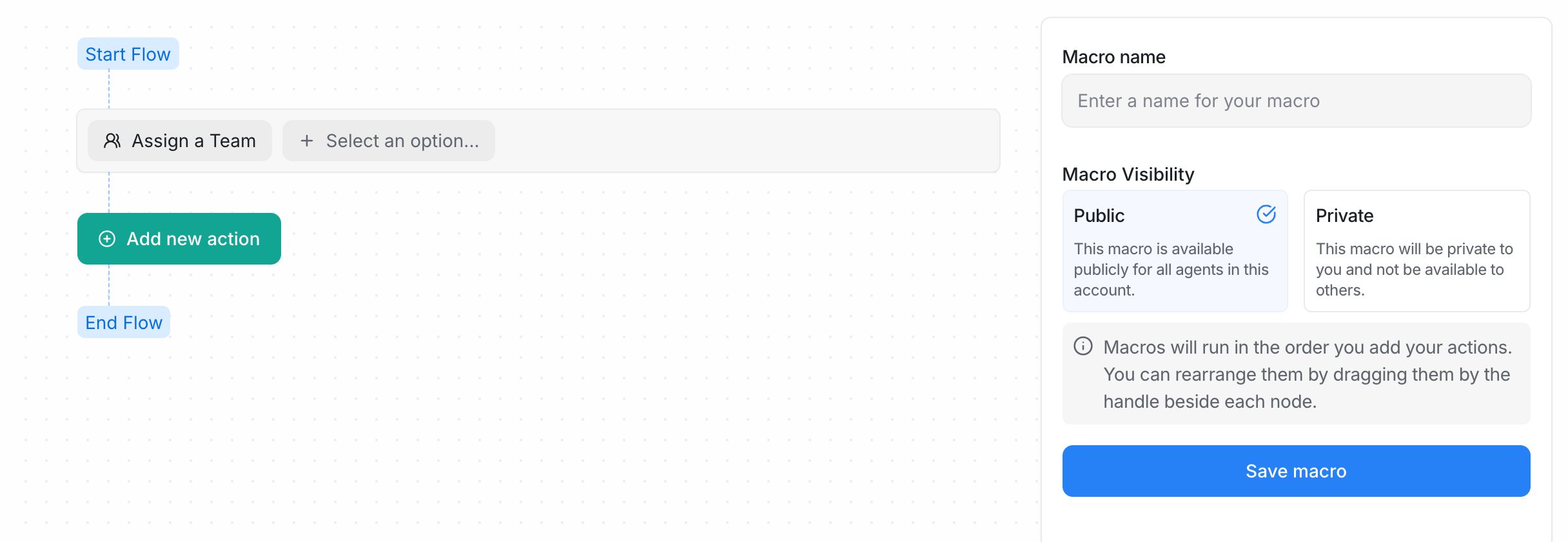
Actions run in the order you add them. To change the order, drag an action by the handle beside it.
Available actions
| Action | What it does |
|---|---|
| Send a Message | Sends a reply to the customer. |
| Add a Private Note | Adds an internal note only your team can see. |
| Send Attachment | Sends a file you upload to the macro. |
| Add a Label | Adds one or more labels. |
| Remove a Label | Removes one or more labels. |
| Assign an Agent | Assigns the conversation to an agent. |
| Assign a Team | Assigns the conversation to a team. |
| Remove Assigned Agent | Unassigns the agent. |
| Remove Assigned Team | Unassigns the team. |
| Change Priority | Sets the priority to None, Low, Medium, High or Urgent. |
| Snooze Conversation | Snoozes the conversation. |
| Resolve Conversation | Resolves the conversation. |
| Mute Conversation | Mutes notifications for the conversation. |
| Send an Email Transcript | Emails a copy of the conversation to an address you choose. |
| Send Webhook Event | Sends the conversation data to a URL you enter. |
Tip: You can use variables such as
{{contact.first_name}}in the Send a Message action. See Canned responses for the full list.
Run a macro on a conversation
- Open the conversation.
- In the right-hand details panel, open Macros.
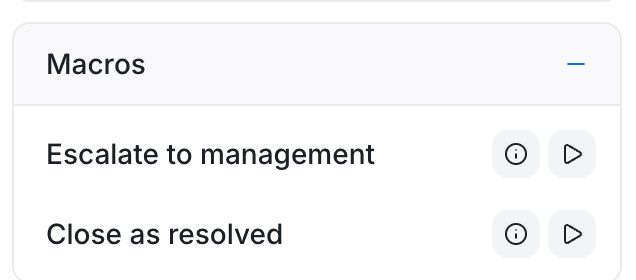
- Optionally, click the preview icon (Preview Macro) to see the actions before you run them.
- Click the run icon (Execute) next to the macro.
EngageOne runs the actions in order and shows "Macro executed successfully" when it is done.
Note: If your account requires certain attributes before a conversation can be resolved and they are still empty, the macro runs its other actions but does not resolve the conversation.
Edit or delete a macro
- Go to Settings → Macros.
- Find the macro in the list. The list shows who created it, who last updated it and its visibility.
- Use the edit icon to change it, or the delete icon to remove it.
Macros or automations?
| Use a macro when… | Use an automation when… |
|---|---|
| An agent decides when to run it. | It should run on its own when something happens. |
| The steps change by situation. | The same rule applies every time. |
| Example: "Refund approved" reply and resolve. | Example: assign every new WhatsApp chat to the Sales team. |