
Account settings
Change your EngageOne account name and language, find your account ID, and set up auto-resolve and required attributes for conversations.
On this page
This article explains the account-wide settings in EngageOne and how to change them.
Before you start
Only administrators can change account settings. Changes apply to everyone in the account.
General settings
- Go to Settings → Account Settings.
- Under General settings, update:
- Account name – your company or brand name. Your team sees it in the dashboard and the account switcher.
- Site language – the default language of the dashboard for everyone in the account. Each person can still choose their own language in their profile.
- Click Update settings.
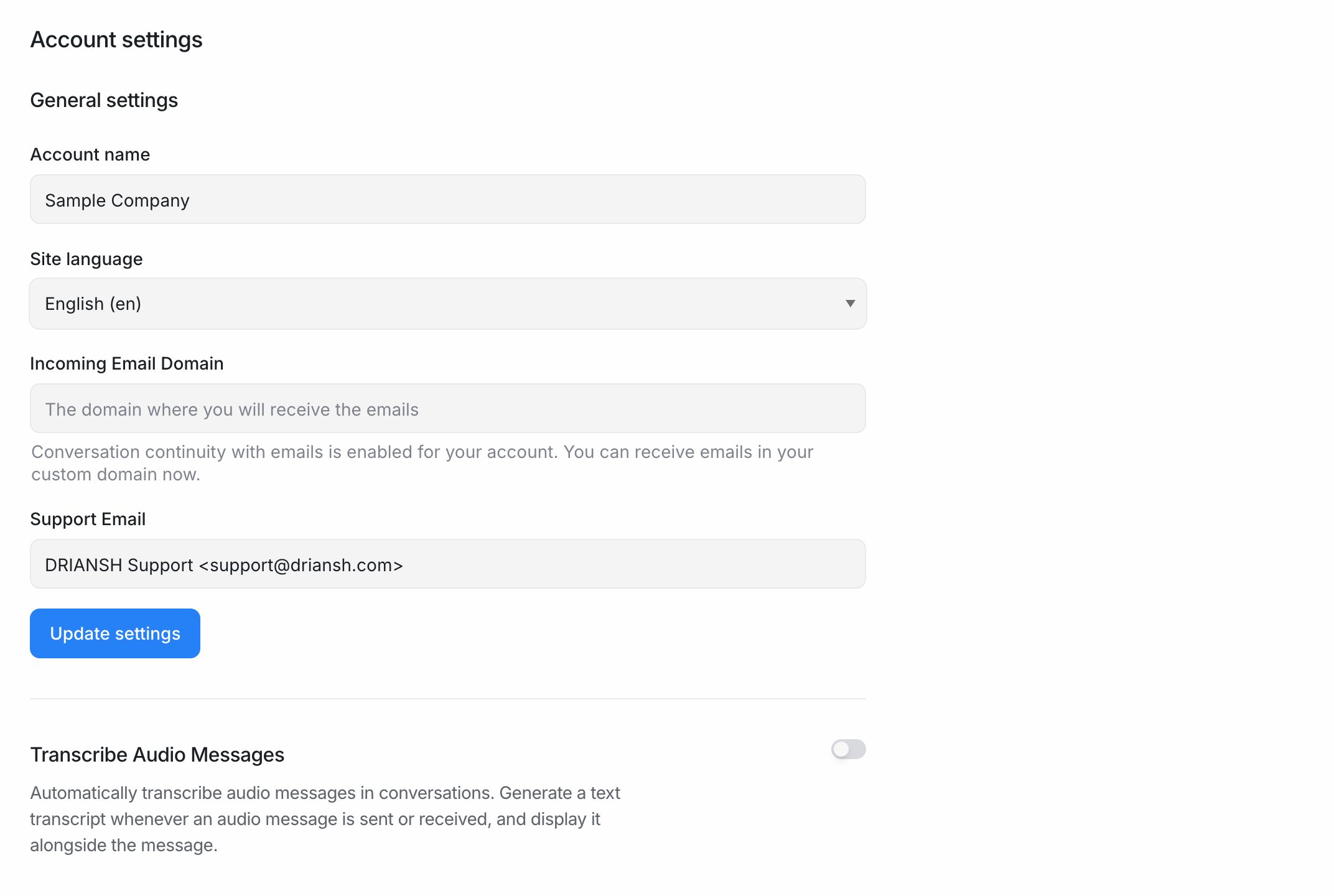
Note: If your installation supports custom email domains, this page also shows Incoming Email Domain and Support Email. These control the address customers reply to when you contact them by email. Ask Driansh to help you set them up.
Account ID
The Account ID section shows the number that identifies your account. You need it when you build an integration with the EngageOne API. Copy it from this page when a developer asks for it.
Transcribe audio messages
If the EngageOne AI Assistant is included in your plan, you can turn on Transcribe Audio Messages. EngageOne then creates a text transcript of every voice message sent or received in a conversation and shows it next to the audio. This helps agents read voice notes quickly, for example on WhatsApp.
Auto-resolve inactive conversations
Auto-resolve closes conversations that have had no activity for a set time, so your open list only shows work that still needs attention.
- Go to Settings → Conversation Workflow.
- Turn on Auto-resolve conversations.
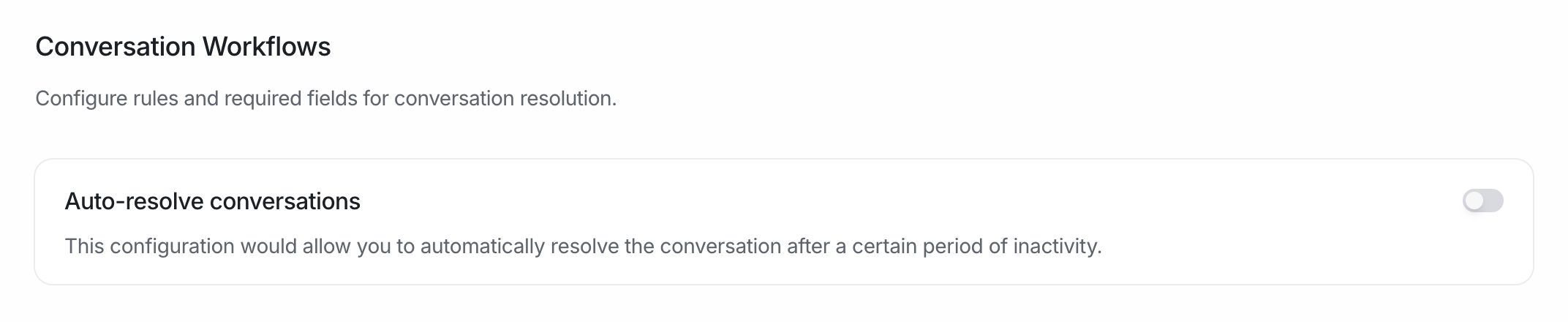
- Set the Inactivity duration and choose minutes, hours or days. The value must be between 10 minutes and 999 days.
- Optionally write a Custom auto-resolution message. EngageOne sends it to the customer when it resolves the conversation, for example "We've closed this chat as we haven't heard back. Just reply to reopen it."
- Under Preferences, choose:
- Skip conversations waiting for agent's reply – leave conversations open if the customer is still waiting for your team. We recommend turning this on so customers are never closed out while waiting for you.
- Add label after auto-resolution – pick a label to add to every auto-resolved conversation, for example
auto-resolved. This lets you find and report on them later.
- Click Save Changes.
Tip: Start with a long duration, such as 7 days, and shorten it once you see how your customers reply. Messaging apps like WhatsApp often have slower, longer conversations than website chat.
Require attributes before resolving
You can ask agents to fill in certain conversation details, such as "Reason for contact" or "Order ID", before they resolve a conversation. This keeps your reports complete.
- First create the fields as conversation custom attributes in Settings → Custom Attributes. See Custom attributes.
- Go to Settings → Conversation Workflow.
- In Attributes required on resolution, click Add Attributes and select the fields.
When an agent clicks Resolve, EngageOne asks them to fill in any required field that is still empty.
Note: Required attributes depend on your plan. If the section shows an upgrade message, contact Driansh.
Security and sign-in
If single sign-on is enabled for your installation, administrators can set up SAML SSO in Settings → Security. Team members then sign in through your company's identity provider instead of an EngageOne password.
Other account-wide settings
Most other items in Settings also apply to the whole account:
| Setting | Use it to | Learn more |
|---|---|---|
| Agents | Invite and manage team members | Invite your team |
| Teams | Group agents by department | Teams |
| Inboxes | Connect and configure channels | Inboxes and channels explained |
| Labels | Create tags for conversations and contacts | Labels |
| Custom Roles | Create roles with specific permissions | Roles and permissions |
| Automation | Create rules that act on conversations | Automations |
| Audit Logs | See who changed what in your account | – |