
Your first conversation
Connect website live chat, send yourself a test message, reply from EngageOne and resolve the conversation, all in about ten minutes.
On this page
This walkthrough takes you from an empty account to a resolved test conversation using website live chat, the quickest channel to set up.
Before you start
- You need to be an administrator of your EngageOne account to create an inbox.
- You need access to a website where you can add a small piece of code, or you can use a simple test page on your computer (see below).
Step 1: Create a website inbox
- In the left sidebar, go to Settings → Inboxes.
- Click Add Inbox.
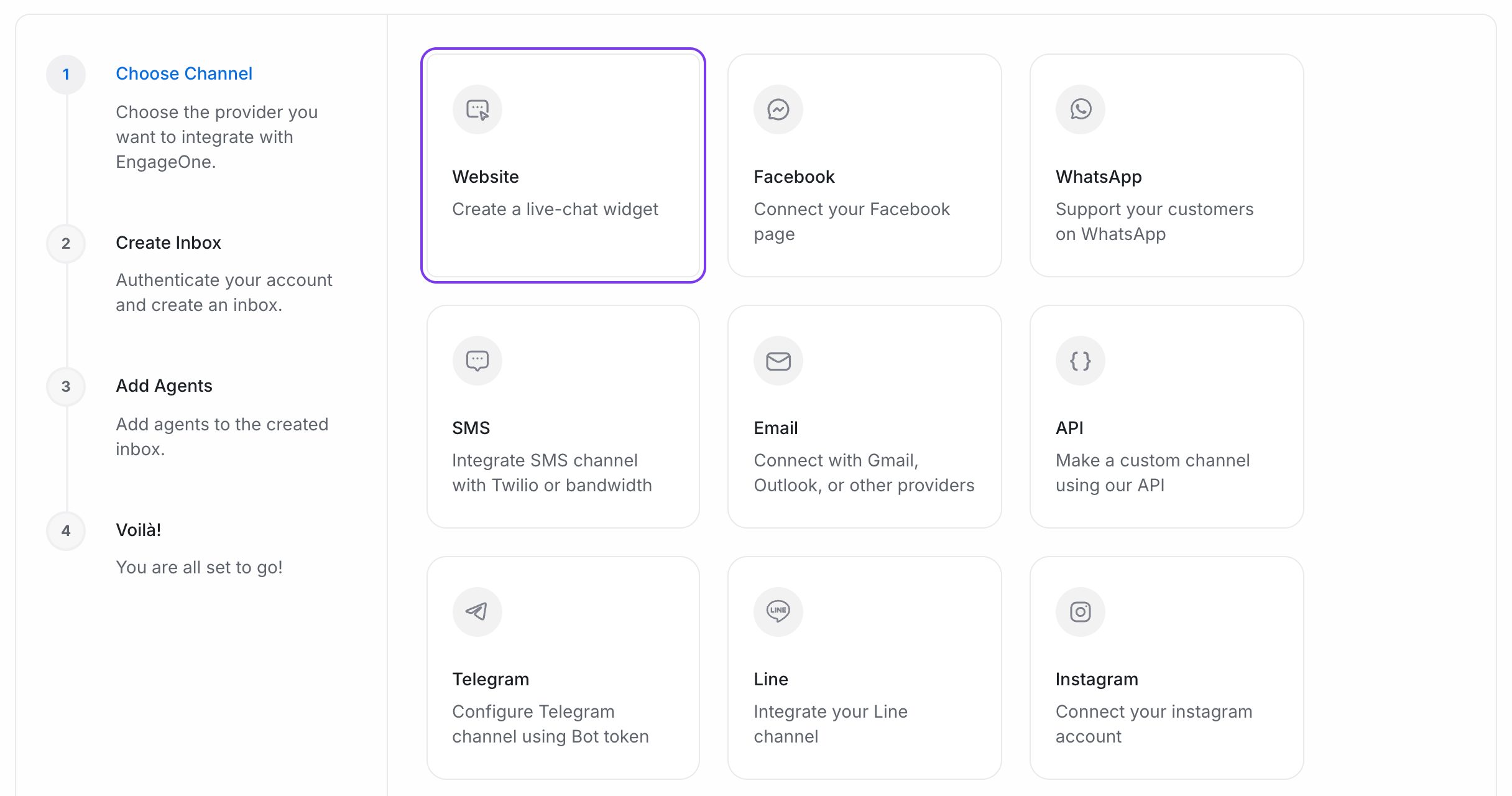
- Choose Website.
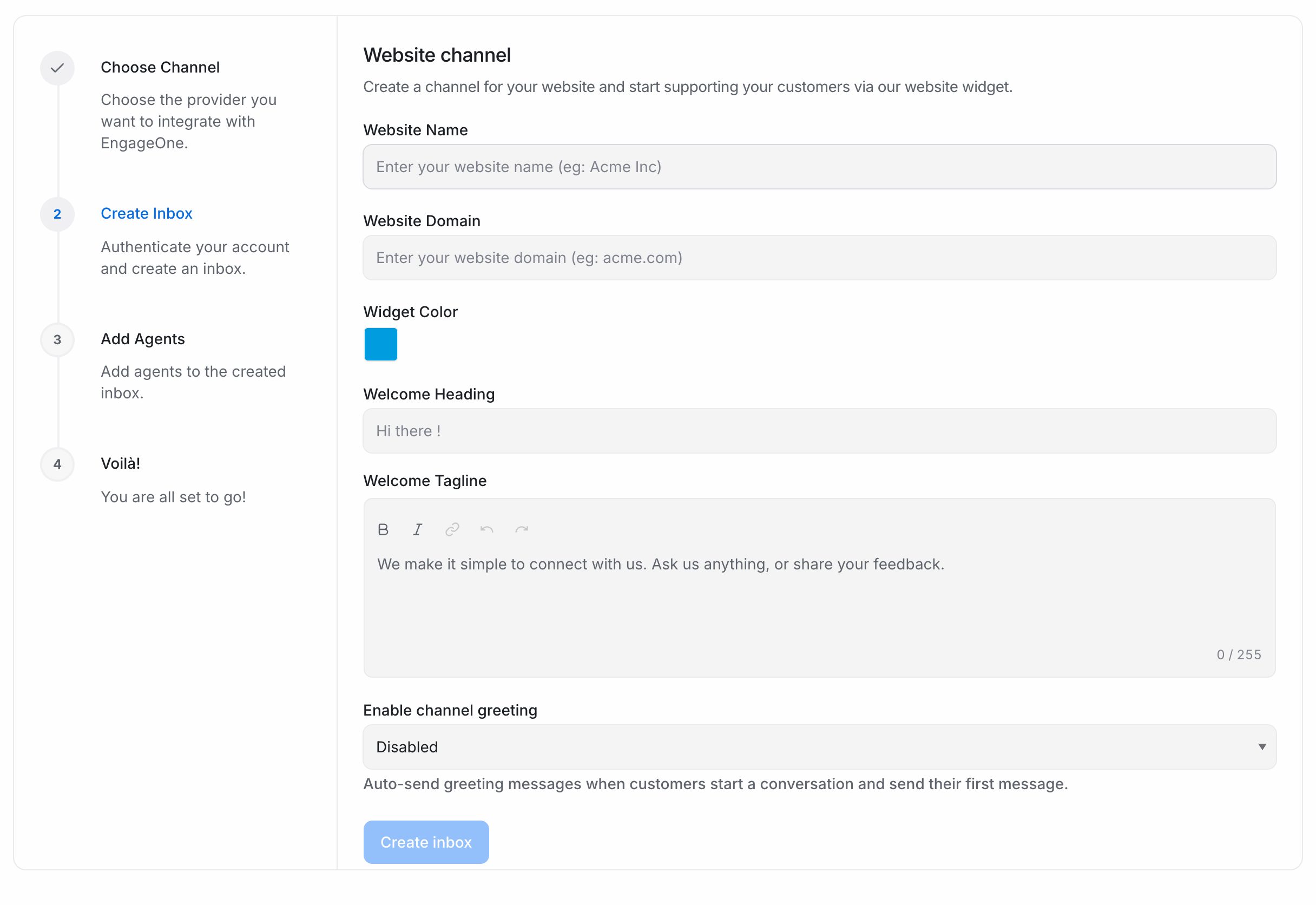
- Fill in the form:
- Website Name – the name customers see in the chat window, for example your company name.
- Website Domain – your website address, for example
example.com. - Widget Color – the main colour of the chat button and window.
- Welcome Heading and Welcome Tagline – the greeting visitors see when they open the chat.
- Enable channel greeting – turn this on if you want an automatic first reply, then write the Channel greeting message (for example, "Thanks for your message! We usually reply within a few minutes.").
- Click Create inbox.
Step 2: Add agents to the inbox
- On the next screen, use Pick agents for the inbox to select who should answer chats from this website. Add yourself so you can see the test conversation.
- Click Add agents.
Important: Agents only see conversations in inboxes they are members of. If someone on your team says they "can't see the chat", check they are added to the inbox.
Step 3: Add the chat widget to your website
When you see Your Inbox is ready!, EngageOne shows a short script.
- Copy the script.
- Paste it into your website's HTML, just before the closing
</body>tag, on every page where you want the chat to appear. Most website builders and CMSs have a "custom code" or "footer scripts" setting for this. - Publish your website.
If you don't have a website ready, create a file called test.html on your computer, paste the script where shown, and open the file in your browser:
<!DOCTYPE html>
<html>
  <head>
    <title>EngageOne chat test</title>
  </head>
  <body>
    <h1>Chat test page</h1>
    <!-- Paste your EngageOne widget script here -->
  </body>
</html>
Tip: You can copy the script again at any time. Go to Settings → Inboxes, open your website inbox, and on the Settings tab switch the widget preview from Preview to Script.
Step 4: Send a test message
- Open your website (or
test.html) in a private or incognito browser window, so you appear as a new visitor. - Click the chat bubble in the bottom corner.
- Type a message such as "Hi, this is a test" and send it.
If you turned on the channel greeting, the greeting appears straight away. The widget may also ask for your email address so the team can follow up if you leave.
Step 5: Reply from EngageOne
- Back in EngageOne, open Conversations → All Conversations. You can also click your website inbox under Channels in the sidebar.
- Find the new conversation. New conversations that nobody owns appear in the Unassigned tab; conversations given to you appear in Mine.
- Click the conversation to open it.
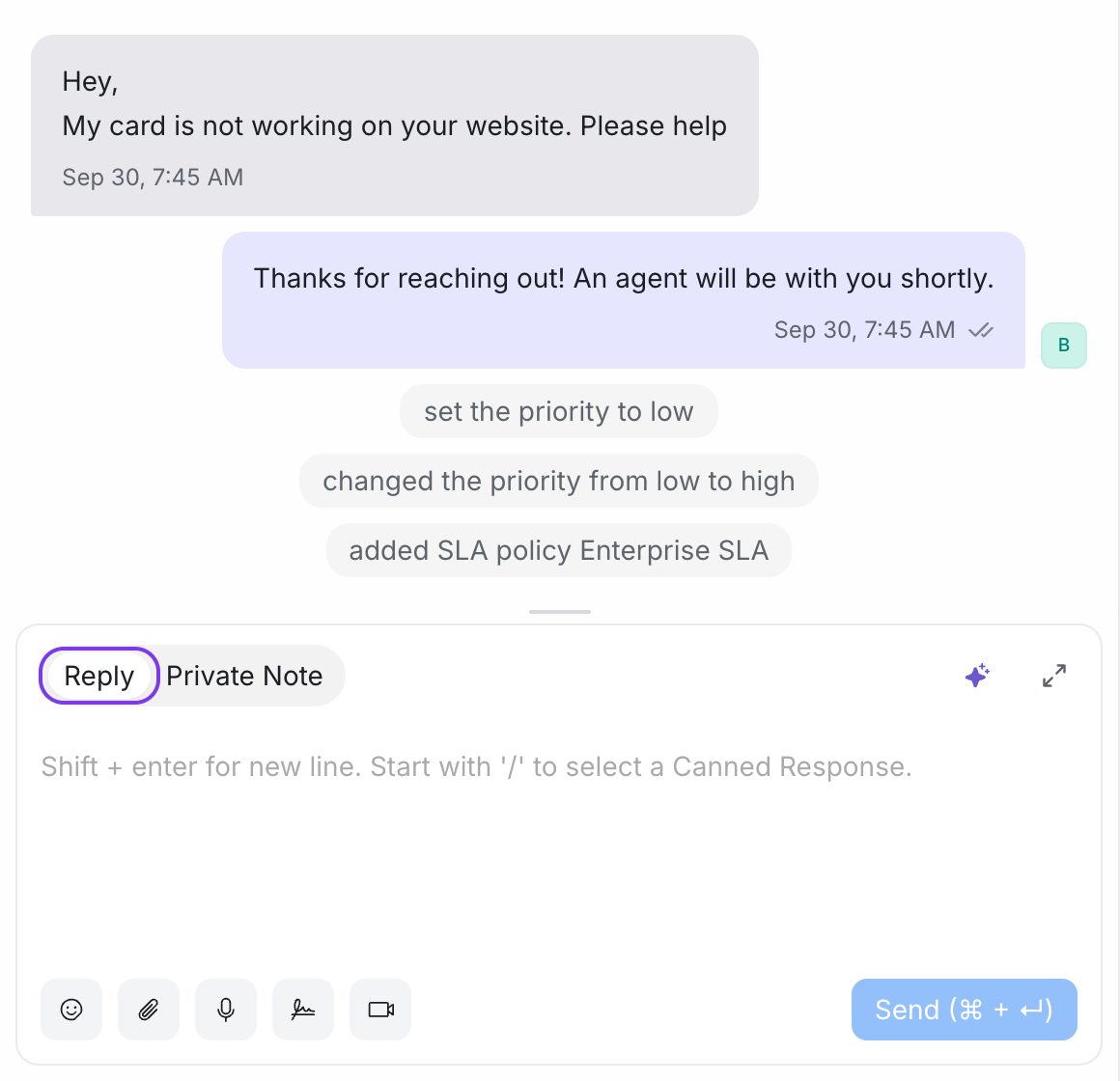
- In the reply box at the bottom, make sure the Reply tab is selected, type your answer and press Enter (or click Send).
- Switch to the visitor's browser window. Your reply appears in the chat.
Note: If pressing Enter adds a new line instead of sending, your profile is set to send with Cmd/Ctrl + Enter. You can change this in Profile and notifications.
Step 6: Try a private note
- In the reply box, switch to the Private Note tab.
- Type a note for your team, for example "Test conversation – OK to close".
- Click Add Note.
The note appears in the conversation with a different background. The visitor never sees it.
Step 7: Resolve the conversation
- Click Resolve at the top of the conversation.
- The conversation moves out of the Open list. To find it again, change the status filter at the top of the conversation list to Resolved.
If the visitor writes again, the conversation reopens automatically and appears in your list.
Tip: If you have turned on CSAT for the inbox, the customer is asked to rate the conversation when you resolve it. See CSAT surveys.
What to do next
- Customise the widget's look, position and behaviour in Widget settings.
- Invite colleagues in Invite your team.
- Connect more channels such as WhatsApp or email.