
CSAT surveys
Ask customers to rate their support in EngageOne after a conversation is resolved, including WhatsApp template surveys and label-based rules.
On this page
A CSAT (customer satisfaction) survey asks the customer to rate their experience after a conversation is resolved. You turn it on for each inbox.
How the survey works
- An agent, automation or bot resolves a conversation.
- EngageOne sends the survey to the customer in the same channel.
- The customer picks a rating from 1 to 5 and can add a comment.
- The response appears on the conversation and in Reports → CSAT.
The five ratings are Poor, Fair, Average, Good and Excellent.
Note: A survey is sent only once per conversation, even if the conversation is resolved again later.
Turn on CSAT for an inbox
- Go to Settings → Inboxes and select the inbox.
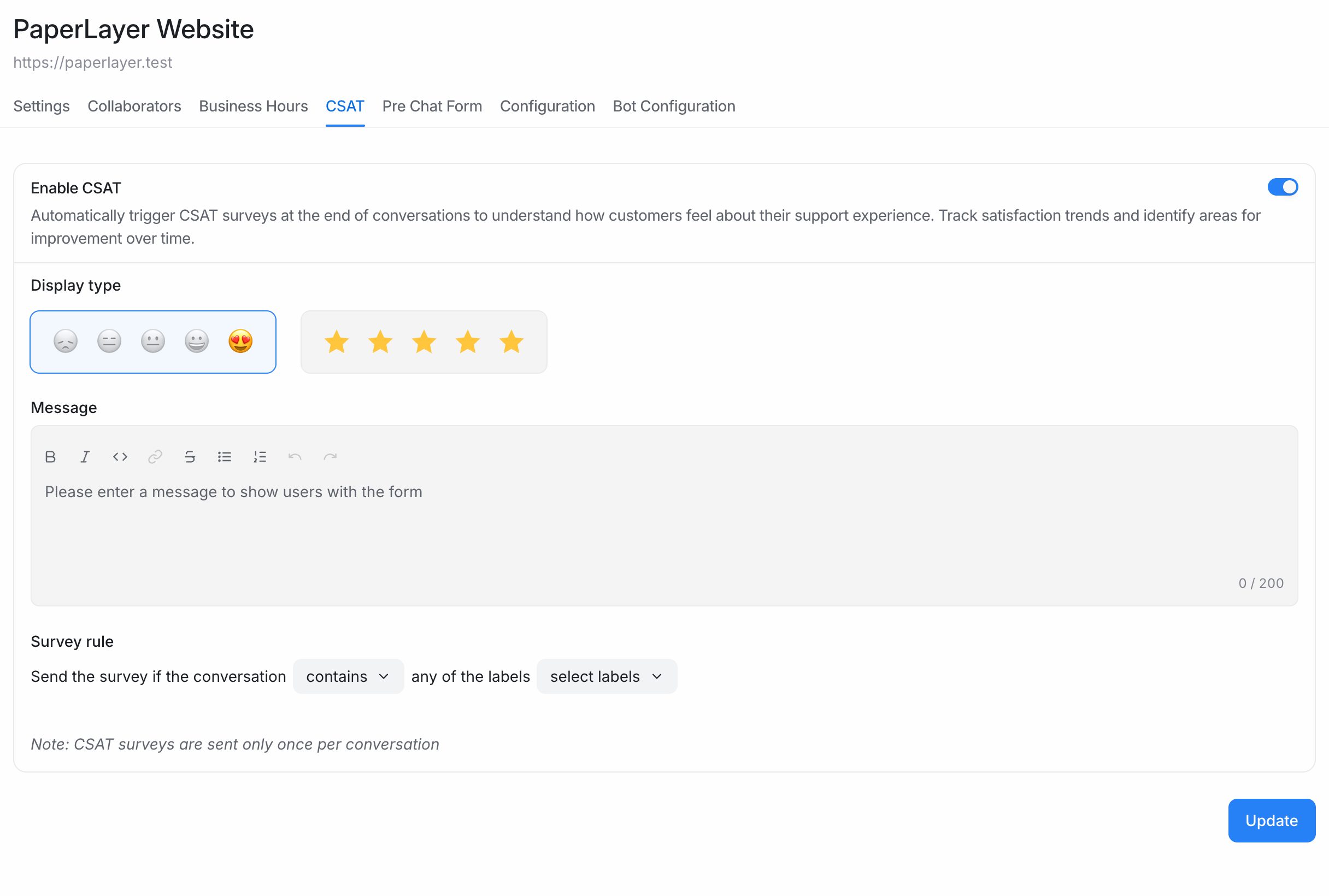
- Click the CSAT tab.
- Turn on Enable CSAT.
- Choose a Display type: emoji faces or stars.
- In Message, write the text customers see with the survey, for example "How did we do today?".
- Optionally, set a Survey rule (see below).
- Click Update.
How customers answer on each channel
| Channel | What the customer sees |
|---|---|
| Website live chat | The rating appears right inside the chat widget. |
| A WhatsApp template message with rating buttons (see below). | |
| Other channels | A message with a link to a short rating page. |
Send surveys only for some conversations
Use a survey rule to send surveys based on labels.
- On the CSAT tab, find Survey rule.
- Complete the sentence "Send the survey if the conversation contains / does not contain any of the labels".
- Choose one or more labels.
- Click Update.
Examples:
- Contains
staff-handledsends surveys only for chats your team handled. - Does not contain
spamskips surveys for spam conversations.
If you leave the label list empty, every resolved conversation gets a survey.
Tip: Combine survey rules with automations or macros that add labels, so the right conversations are tagged before they are resolved.
CSAT on WhatsApp
WhatsApp only lets businesses message a customer freely within 24 hours of the customer's last message. To make surveys work reliably, EngageOne sends them as an approved WhatsApp template.
Set up the WhatsApp survey
- Open your WhatsApp inbox and click the CSAT tab.
- Turn on Enable CSAT.
- Fill in:
- Message: the survey text.
- Button text: the label on the rating button, for example "Please rate us".
- Language: the template language.
- Check the Message preview on the right. It may look slightly different on WhatsApp.
- Optionally, click Check utility fit. This gives a prediction of whether Meta will see your message as a Utility or Marketing template, and may suggest a rewrite you can apply with Use this rewrite.
- Click Update.
When you save, EngageOne creates a dedicated survey template and submits it for WhatsApp approval as a Utility template.
Template status
| Status | What it means |
|---|---|
| Pending WhatsApp approval | Meta is reviewing the template. |
| Approved by WhatsApp | Surveys are sent with the template. |
| Meta rejected the template | Edit the message and save again. |
| Needs WhatsApp approval | The template has not been submitted yet. |
Note: Meta decides the final category. It may classify the template as Marketing based on its content. The utility check is guidance, not a guarantee.
If you change the message later, EngageOne deletes the old template and submits a new one for approval.
When a survey cannot be sent
If the template is not approved and the conversation is outside the 24-hour messaging window, the survey is not sent. EngageOne adds a note to the conversation so your team knows.
The template survey works for WhatsApp inboxes connected directly through Meta and through Twilio.
See the results
Go to Reports → CSAT to see response counts, satisfaction scores and individual comments. You can filter by agent, inbox, team, rating and date range. See CSAT reports.