
Contacts and segments
Manage customer profiles in EngageOne: add, import, export, merge and block contacts, then filter them and save segments.
On this page
Every person who messages you becomes a contact in EngageOne. The Contacts page shows all of them in one place, with their details, labels, notes and past conversations.
Open the contacts list
Click Contacts in the left sidebar. You see these views:
| View | What it shows |
|---|---|
| All Contacts | Every contact in your account. |
| Active | Contacts who are online right now. |
| Segments | Contact filters you have saved. |
| Tagged with | Contacts that have a given label. |
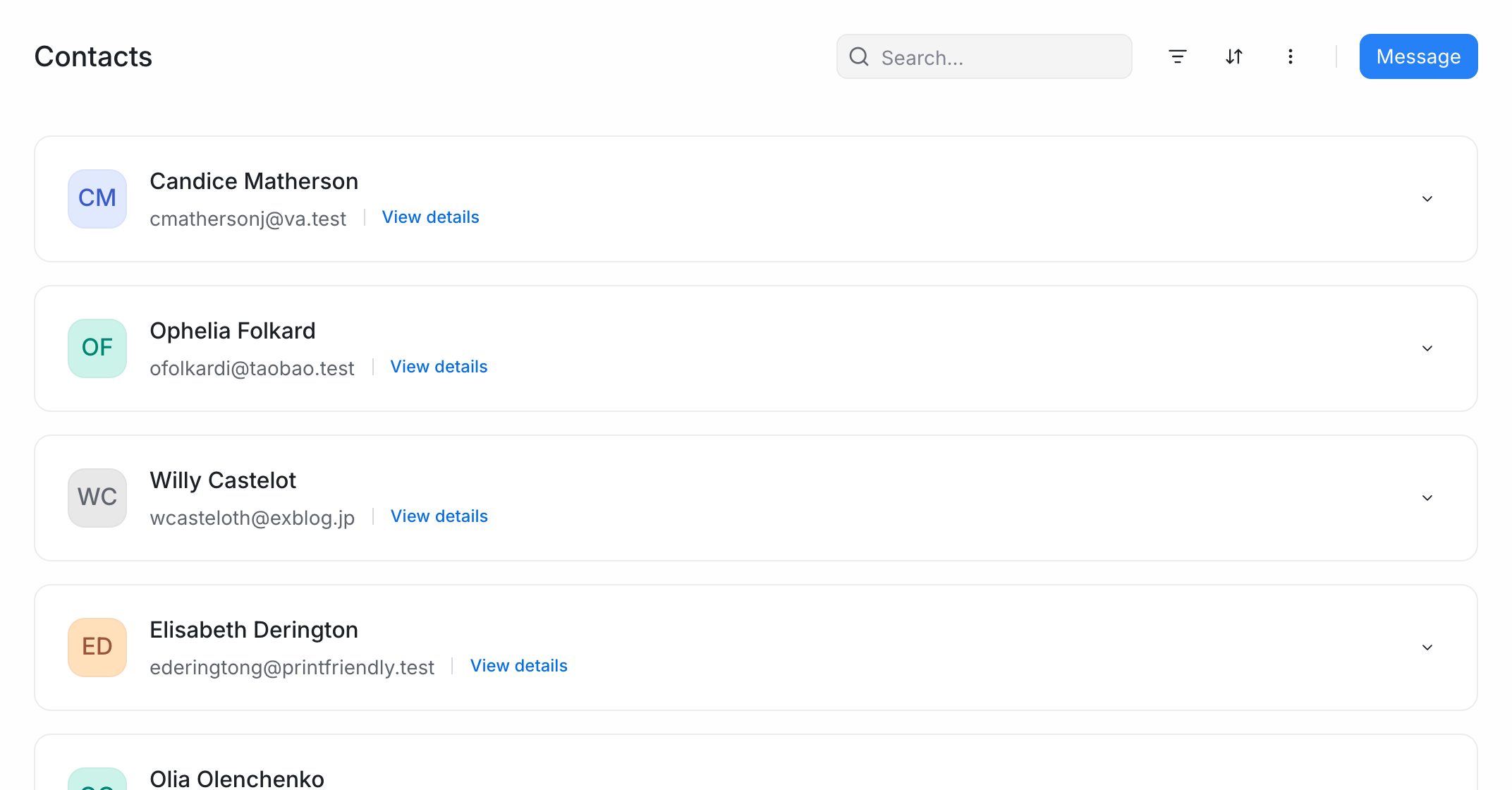
Use the search box to find a contact by name, email, phone number or identifier.
Add a contact
- Go to Contacts and click Add contact.
- Enter the contact's details, such as name, email and phone number.
- Click Save contact.
Each email address and phone number can belong to only one contact. If you enter one that is already in use, EngageOne tells you.
Import contacts from a CSV file
- Go to Contacts and open the import option (Import contacts).
- Click Download a sample csv to see the columns EngageOne expects.
- Fill in your file using the same column headings.
- Click Choose file, select your CSV and click Import.
The import runs in the background. Your new contacts appear in the list when it finishes.
Export contacts
- Go to Contacts and choose Export contacts.
- Click Export.
EngageOne prepares a CSV file in the background and emails you a download link when it is ready.
View and edit a contact
Click a contact to open their profile. The side panel has these tabs:
| Tab | What you find there |
|---|---|
| Attributes | Custom attributes for this contact. |
| History | Previous conversations with this contact. |
| Notes | Internal notes about the contact. Only your team sees them. |
| Media | Files shared in this contact's conversations. |
| Merge | Combine this contact with a duplicate. |
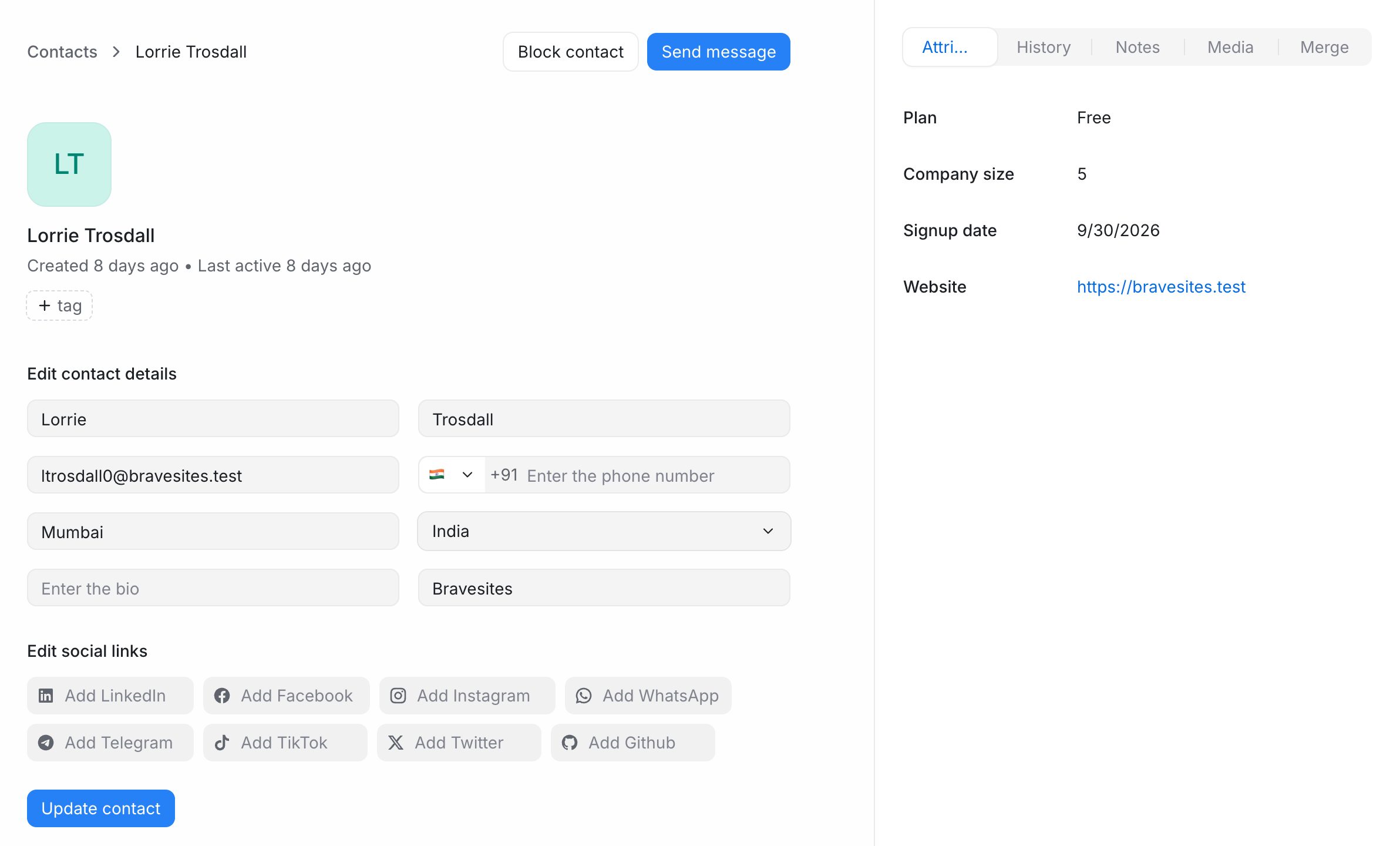
You can also edit the contact's name, email, phone, company and social links, add contact labels, and start a new conversation with Send message.
Merge duplicate contacts
The same person sometimes appears twice, for example once from email and once from WhatsApp.
- Open the contact you want to keep.
- Go to the Merge tab.
- Search for the duplicate contact and select it.
- Click Merge contact.
Both profiles are combined into one, including all attributes and conversations. If both have a value for the same detail, the primary contact's value wins. The duplicate is deleted.
Important: Merging cannot be undone. Check you picked the right contacts before you confirm.
Block a contact
If a contact sends spam or abuse, open their profile and choose Block contact. To allow them again, choose Unblock contact.
Filter contacts
- Go to Contacts and click the filter button.
- Click Add filter and choose a field, an operator and a value.
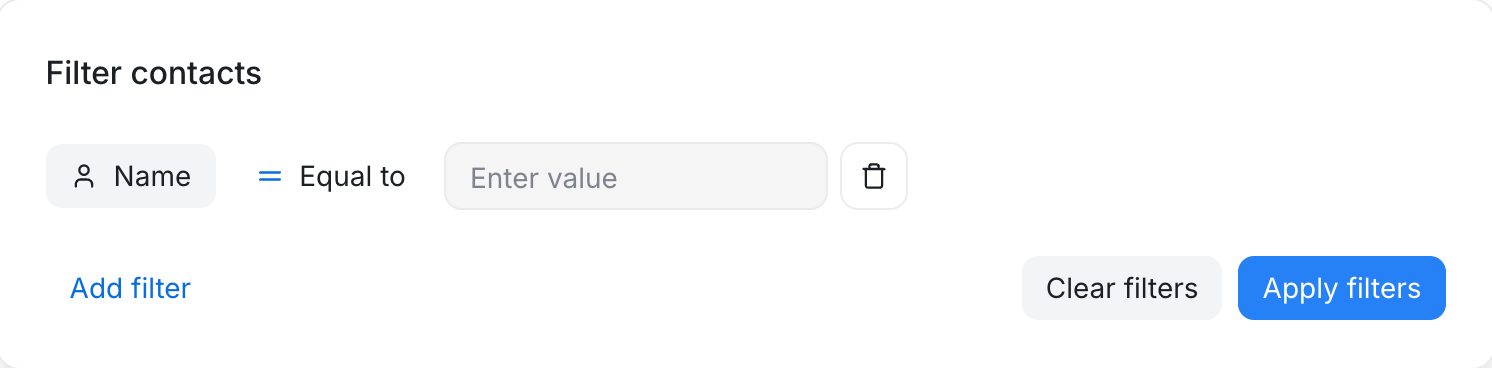
- Add more filters if you need them, and choose AND or OR between them.
- Click Apply filters.
You can filter by these standard fields, plus any contact custom attribute:
| Field | Operators you can use |
|---|---|
| Name, Identifier, Country, Blocked, Labels | Equal to, Not equal to |
| Email, Phone number, City, Company | Equal to, Not equal to, Contains, Does not contain |
| Created at, Last activity | Is greater than, Is lesser than, Is x days before |
For example, Email contains @example.com AND Country equal to India.
To clear everything, click Clear filters.
Save a filter as a segment
A segment is a saved contact filter. Use it for groups you check often, such as "VIP customers in India".
- Apply the filters you want.
- Choose to save the filter. In Do you want to save this filter?, enter a Name.
- Click Save filter.
The segment appears under Contacts → Segments. It updates automatically as contacts change.
To change a segment, open it, click Edit segment, adjust the filters and click Update segment. To remove it, choose delete and confirm.
Tip: Segments are useful for planning campaigns and for finding contacts who need a follow-up.
Sort contacts
Use Sort by to order the list by Name, Email, Phone number, Company, Country, City, Last activity or Created at. Use Ordering to switch between Ascending and Descending.