
Dashboard tour
Find your way around the EngageOne dashboard, from the sidebar sections to the three panes of the conversation view.
This tour shows you what each part of the EngageOne dashboard is for, so you know where to go for every task.
The layout at a glance
The dashboard has two main parts:
- The left sidebar – takes you to each section of EngageOne.
- The main area – shows the section you picked, such as your conversation list or a report.
What you see in the sidebar depends on your role. Administrators see every section. Agents see the sections they need to handle conversations. See Roles and permissions.
Tip: Press Cmd + K (Mac) or Ctrl + K (Windows) anywhere in the dashboard to open the command bar. Start typing to jump to a page or run an action on the open conversation.
Sidebar sections
My Inbox
Your personal notification feed. It lists events that need your attention, such as a conversation assigned to you or a colleague mentioning you in a note. Click an item to jump straight to the conversation.
Conversations
Where your team spends most of its time.
| Item | What it shows |
|---|---|
| All Conversations | Every conversation you have access to. |
| Mentions | Conversations where someone @mentioned you in a private note. |
| Participating | Conversations you take part in, even if they are assigned to someone else. |
| Unattended | Conversations waiting for a reply from your team. |
| Folders | Saved conversation filters you created. |
| Teams | Conversations assigned to each team you belong to. |
| Channels | One entry per inbox, such as your website chat or WhatsApp number. |
| Labels | Conversations tagged with each label. |
AI Assistant
Set up and train the EngageOne AI Assistant. Here you create assistants, add documents and FAQs, describe scenarios, connect tools, test replies in a playground and choose which inboxes the assistant works in. See Introduction to the AI Assistant.
Calls
If voice calling is turned on for your account, this section lists your phone and WhatsApp calls. See Calling overview.
Contacts
Your shared customer list. Use All Contacts, Active (contacts online right now), Segments (saved contact filters) and Tagged with (contacts by label). Click a contact to see their details, notes and past conversations. See Contacts and segments.
Companies
Groups your contacts by the company they work for, so you can see everyone from one customer organisation together.
Reports
Numbers about your conversations and team: an Overview with live figures, plus reports for Conversations, Agents, Labels, Inbox, Team, CSAT, SLA and Bot. See Reports overview and live view.
Campaigns
Send messages first. Live chat campaigns show a message to visitors on your website. SMS and WhatsApp campaigns send a one-off message to a group of contacts.
Help Center
Write and publish help articles for your customers. Manage Articles, Categories, Locales (languages) and Settings. See Set up a help center.
Settings
Configure your account. Administrators see items such as Account Settings, Agents, Teams, Inboxes, Labels, Custom Attributes, Automation, Bots, Macros, Canned Responses, Integrations, Audit Logs, Custom Roles, SLA, Conversation Workflow and Security. Some items appear only when your plan includes them.
Your profile menu
Click your avatar at the bottom of the sidebar to:
- Set your availability (Online, Busy or Offline).
- Open Profile settings.
- See Keyboard shortcuts.
- Change appearance (light or dark theme).
- Switch account, if you belong to more than one.
- Log out.
The conversation view
When you open Conversations, the main area splits into three panes.
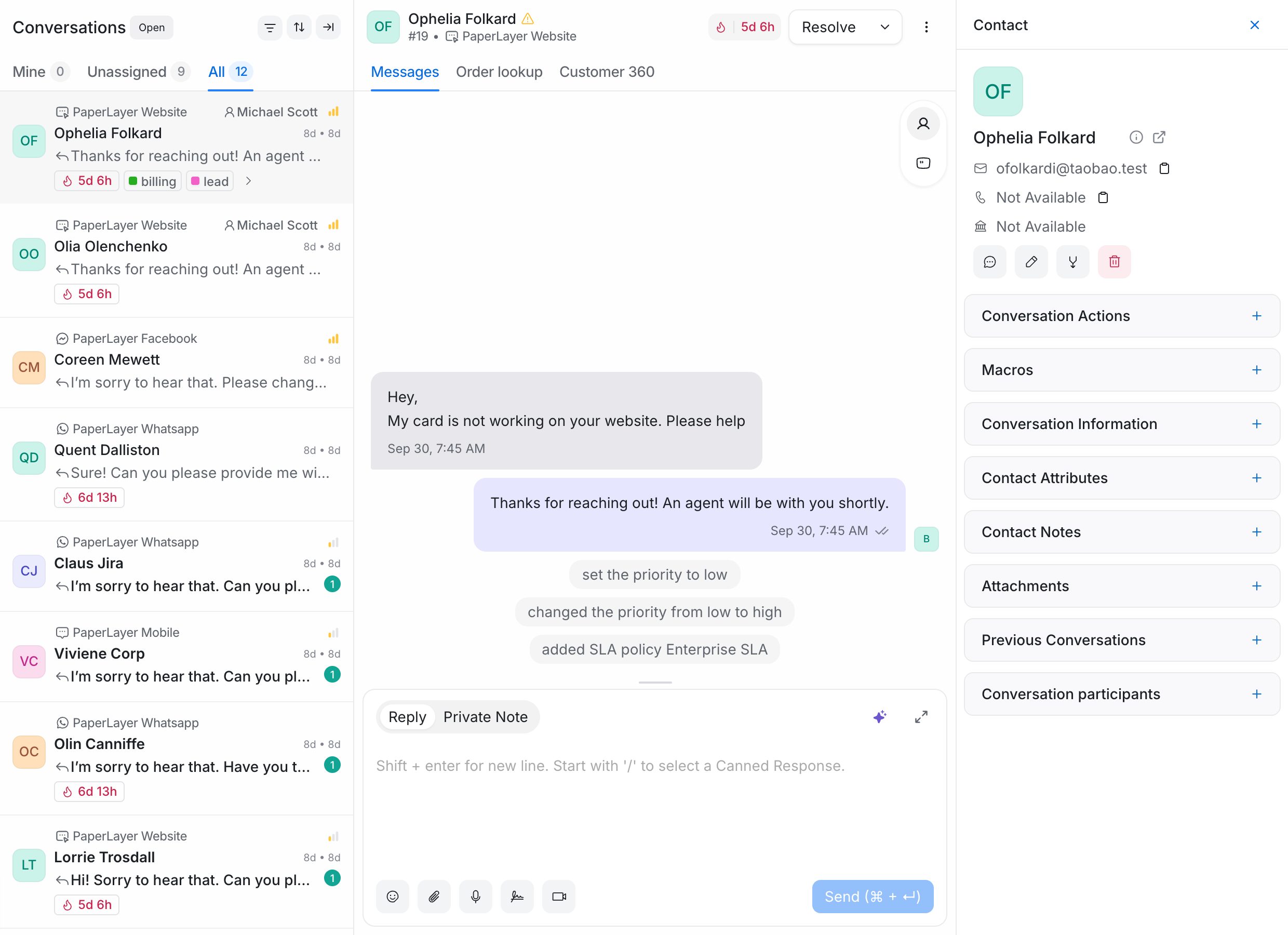
1. Conversation list (left)
- Tabs at the top: Mine (assigned to you), Unassigned and All.
- Status filter: show Open, Pending, Snoozed, Resolved or All conversations.
- Sort and filter options to narrow the list, for example by inbox, label or date. See Conversation filters.
- Each card shows the contact, the inbox, the latest message and how long ago it arrived.
Tip: Hover over a conversation card and tick its checkbox to select several conversations. You can then assign, label, resolve or snooze them in one go.
2. Message thread (middle)
- Header: the contact's name and the inbox, plus the Resolve button. The arrow next to it lets you Snooze the conversation or Mark as pending.
- Messages: the full history with the customer, including attachments, bot replies and private notes (shown with a different background).
- Reply box at the bottom with two tabs:
- Reply – sends a message to the customer.
- Private Note – adds a note only your team can see.
- Reply box tools let you add emojis, attach files, insert canned responses (type
/) and, where available, use AI help to improve your text.
3. Details panel (right)
Open or close it from the conversation header. It contains collapsible sections:
| Section | What you can do |
|---|---|
| Contact details | See and edit the contact's name, email, phone and other details. |
| Conversation Actions | Change the assigned agent, team and priority, and add or remove labels. |
| Macros | Run a saved set of actions with one click. |
| Conversation Information | See technical details such as the browser, page and time the chat started. |
| Contact Attributes | View and edit custom attributes for the contact. |
| Contact Notes | Read and add notes about the contact. |
| Previous Conversations | Open the contact's earlier conversations. |
| Attachments | See files shared in the conversation. |