
Conversation filters and folders
Find the right conversations in EngageOne with quick views, status and sort options, advanced filters and saved folders.
On this page
When your inbox gets busy, filters help you focus on the conversations that need you. You can save any filter as a folder and open it again with one click.
Quick views in the sidebar
Under Conversations in the left sidebar you find:
| View | What it shows |
|---|---|
| All Conversations | Every conversation you have access to. |
| Mentions | Conversations where someone @mentioned you in a private note. |
| Participating | Conversations you are taking part in. |
| Unattended | Conversations still waiting for a first reply, or for a reply to the customer's latest message. |
| Folders | Your saved filters. |
| Teams | Conversations assigned to each of your teams. |
| Channels | Conversations from each inbox. |
| Labels | Conversations with each label shown on the sidebar. |
Mine, Unassigned and All
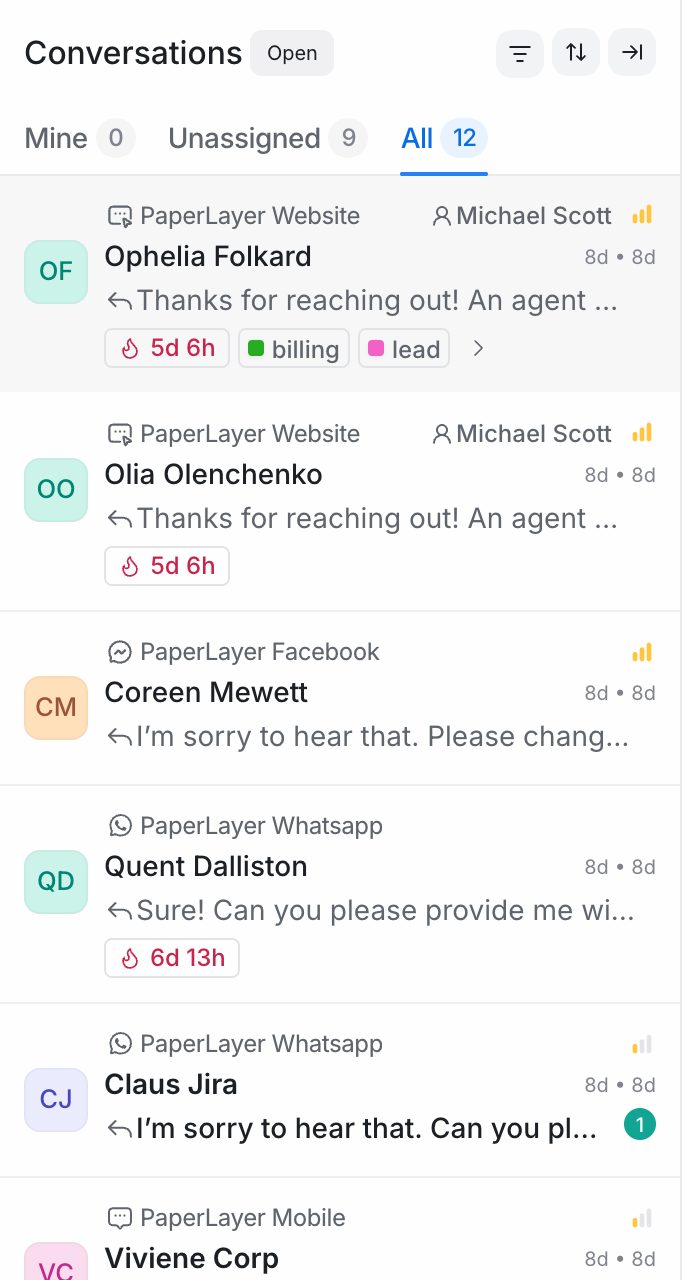
At the top of the conversation list, switch between:
- Mine: conversations assigned to you.
- Unassigned: conversations nobody owns yet.
- All: every conversation in the current view.
Filter by status and sort the list
Open the sort and view options above the conversation list.
Status lets you show Open, Pending, Snoozed, Resolved or All conversations.
Order by changes the order of the list:
| Option | Shows first |
|---|---|
| Last activity: Newest first | Conversations with the most recent activity |
| Last activity: Oldest first | Conversations that have been quiet the longest |
| Created at: Newest first | The newest conversations |
| Created at: Oldest first | The oldest conversations |
| Unread Count: Highest first | Conversations with the most unread messages |
| Priority: Highest first | Urgent and high-priority conversations |
| Priority: Lowest first | Low-priority conversations |
| Priority: Highest first, Created: Oldest first | Highest priority, then the longest-waiting within each priority |
| Pending Response: Longest first | Customers who have waited longest for a reply |
| Pending Response: Shortest first | Customers who started waiting most recently |
Tip: Pending Response: Longest first is a quick way to make sure nobody waits too long.
Use advanced filters
- Click the filter button above the conversation list (Filter conversations).
- Click Add filter.
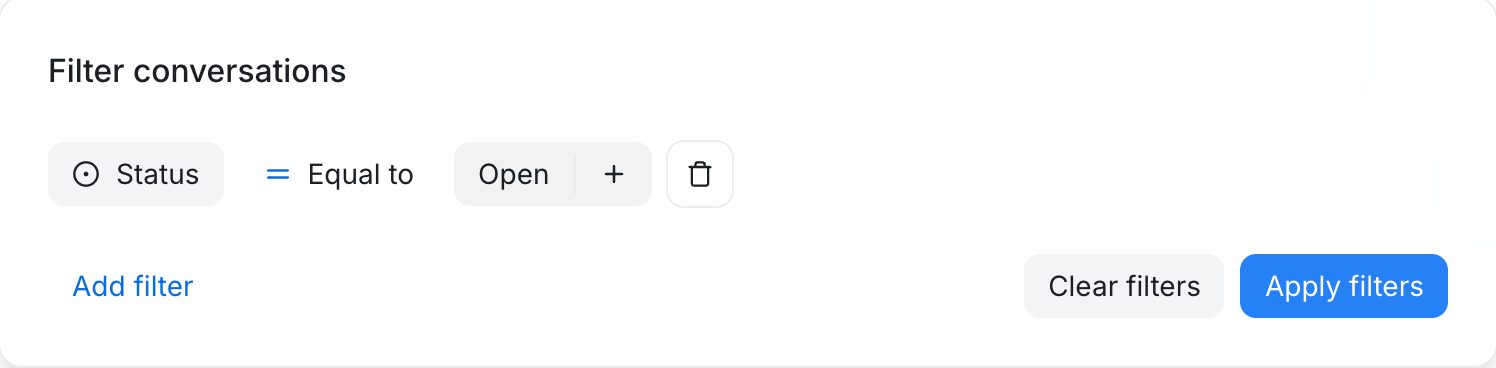
- Choose an attribute, an operator and a value.
- Add more filters if you need them, and choose AND or OR between them.
- Click Apply filters.
To remove all filters, click Clear filters.
What you can filter by
- Status
- Priority
- Assignee name
- Inbox name
- Team name
- Contact
- Conversation identifier
- Campaign name
- Labels
- Browser language
- Referer link
- Created at
- Last activity
- Any conversation custom attribute
Operators depend on the attribute. They include Equal to, Not equal to, Contains, Does not contain, Is present, Is not present, Is greater than, Is lesser than and Is x days before.
Example: Status equal to Open AND Labels equal to refund AND Last activity is x days before 2.
Save a filter as a folder
- Apply the filters you want.
- Choose to save the filter. In Do you want to save this filter?, enter a name under Name this filter.
- Click Save filter.
The folder appears under Conversations → Folders in the sidebar. It updates automatically as conversations change.
Folders are personal. Each teammate creates their own.
Edit or delete a folder
- Open the folder from the sidebar.
- Click Edit folder to change its filters, then click Update folder.
- To remove it, choose Delete filter and confirm.
Ideas for useful folders
| Folder | Filters |
|---|---|
| Urgent and open | Status equal to Open AND Priority equal to Urgent |
| VIP customers | Labels equal to vip |
| Waiting on billing team | Team name equal to Billing AND Status equal to Pending |