
Reports overview and live view
Find your way around EngageOne reports and use the Overview page to watch open conversations, agent status, traffic and team performance.
On this page
The Overview report shows what's happening in your support right now and how your team performed over recent days.
Who can see reports
Reports are available to Administrators and to custom roles that have permission to manage reports. Agents without this permission don't see the Reports menu. See Roles and permissions.
Reports at a glance
Open Reports in the left sidebar. You'll find these reports:
| Report | What it shows |
|---|---|
| Overview | Live counts, agent status, traffic heatmaps and a performance summary. |
| Conversations | Conversation and message volumes, response and resolution times over time. |
| Agents | Performance for each agent. |
| Labels | Performance for each label. |
| Inbox | Performance for each inbox. |
| Team | Performance for each team. |
| CSAT | Customer satisfaction survey results. |
| SLA | Conversations with service level policies applied, if SLA is available on your workspace. |
| Bot | How many conversations your bots handled, resolved and handed off. |
Live view
Open Reports → Overview. The top of the page updates live and shows the current state of your workspace.
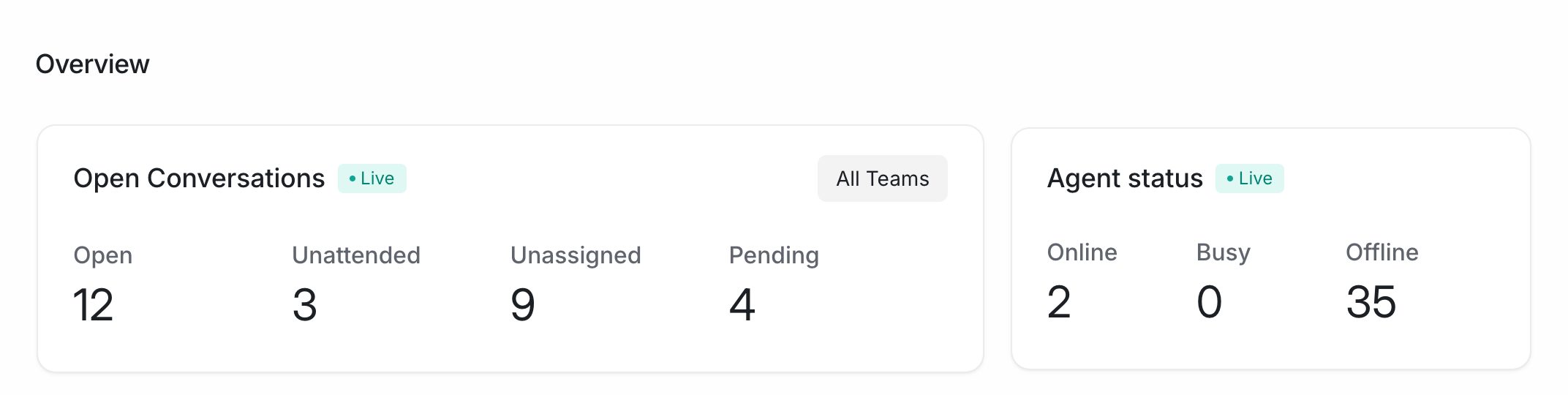
Open conversations
| Metric | Meaning |
|---|---|
| Open | Conversations that are open right now. |
| Unattended | Open conversations where the customer is waiting for a reply from your team. |
| Unassigned | Open conversations without an agent. |
| Pending | Conversations in the Pending status, for example ones the AI Assistant or a bot is handling. |
If you use teams, choose a team from the menu on this card to see its numbers only, or choose All Teams.
Agent status
Shows how many agents are Online, Busy and Offline right now.
Conversations by agents and teams
Two tables list each agent and each team with their Open and Unattended conversations, so you can spot who is overloaded.
Tip: Keep the Overview page open on a shared screen during busy periods to watch the queue in real time.
Performance summary
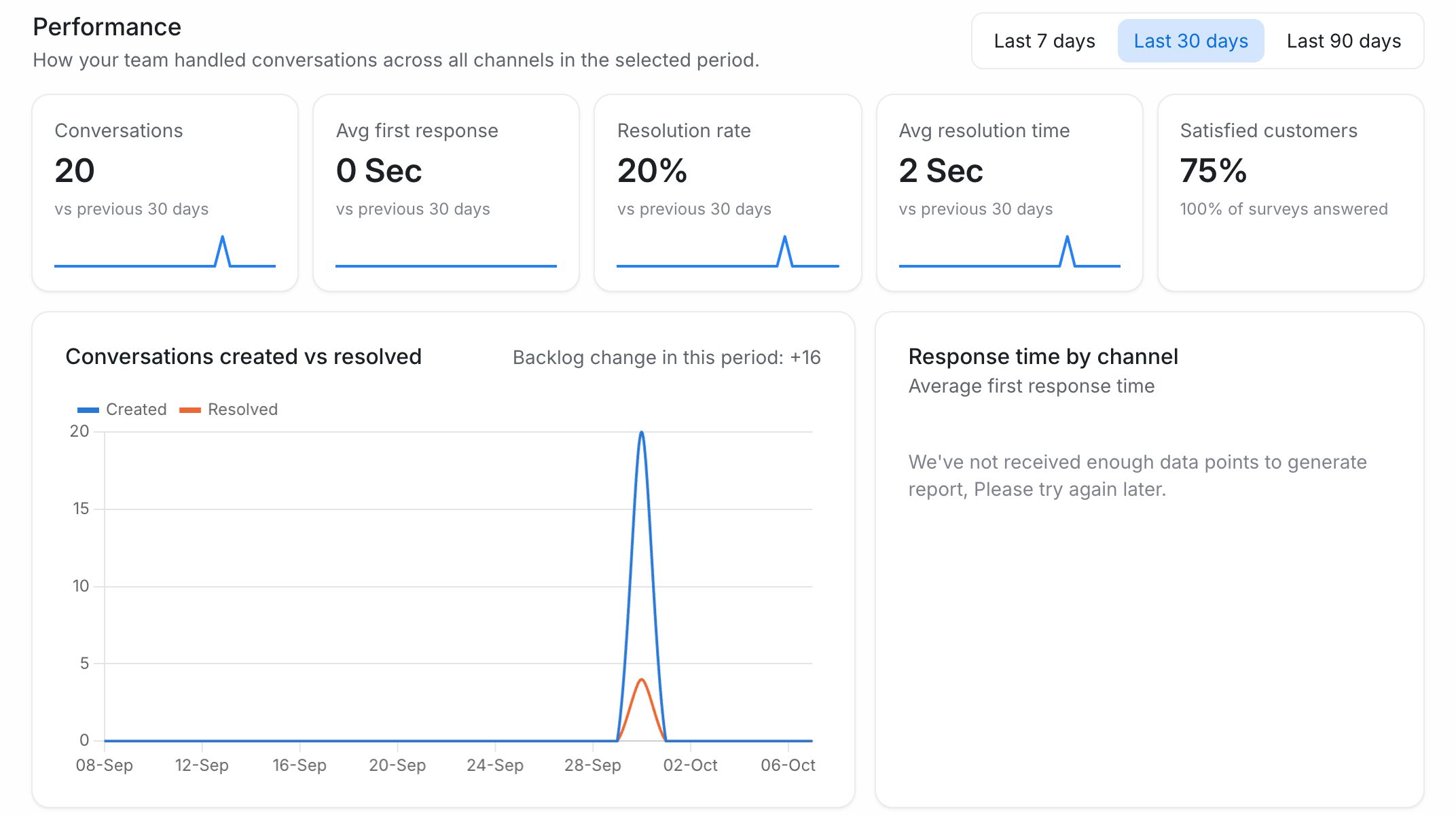
The Performance section shows how your team handled conversations across all channels.
- Choose a period: Last 7 days, Last 30 days or Last 90 days.
- Read the tiles. Each one compares the period with the previous period of the same length.
| Tile | Meaning |
|---|---|
| Conversations | Conversations in the period. |
| Avg first response | Average time until the first reply from your team. |
| Resolution rate | Share of conversations that were resolved. |
| Avg resolution time | Average time to resolve a conversation. |
| Satisfied customers | Share of positive CSAT ratings, with the share of surveys answered. |
Below the tiles you'll find:
- Channel mix – conversations per day by channel, and each channel's share.
- Response time by channel – average first response time for each channel.
- Agent performance – top agents by conversations resolved, with their assigned and resolved counts, average first response, average resolution time and CSAT.
Traffic and resolution heatmaps
The Conversation Traffic and Resolutions heatmaps show which days and hours are busiest.
- Choose a date range, for example Last 7 days.
- Optionally, filter by inbox.
- Hover over a cell to see the number of conversations in that hour.
- Click the download button to save the data as a CSV file.
Use these heatmaps to plan shifts and set business hours.