
Bring a support mailbox into EngageOne with Google, Microsoft 365, email forwarding or IMAP and SMTP, and answer emails as conversations.
On this page
An Email inbox turns a mailbox such as support@yourcompany.com into shared conversations, so your team can read and answer customer emails in EngageOne.
How it works
- A customer sends an email to your support address.
- EngageOne receives it and opens a conversation. Replies in the same email thread go to the same conversation.
- An agent replies in EngageOne.
- The customer gets a normal email reply in the same thread and can answer from any mail app.
Choose how to connect
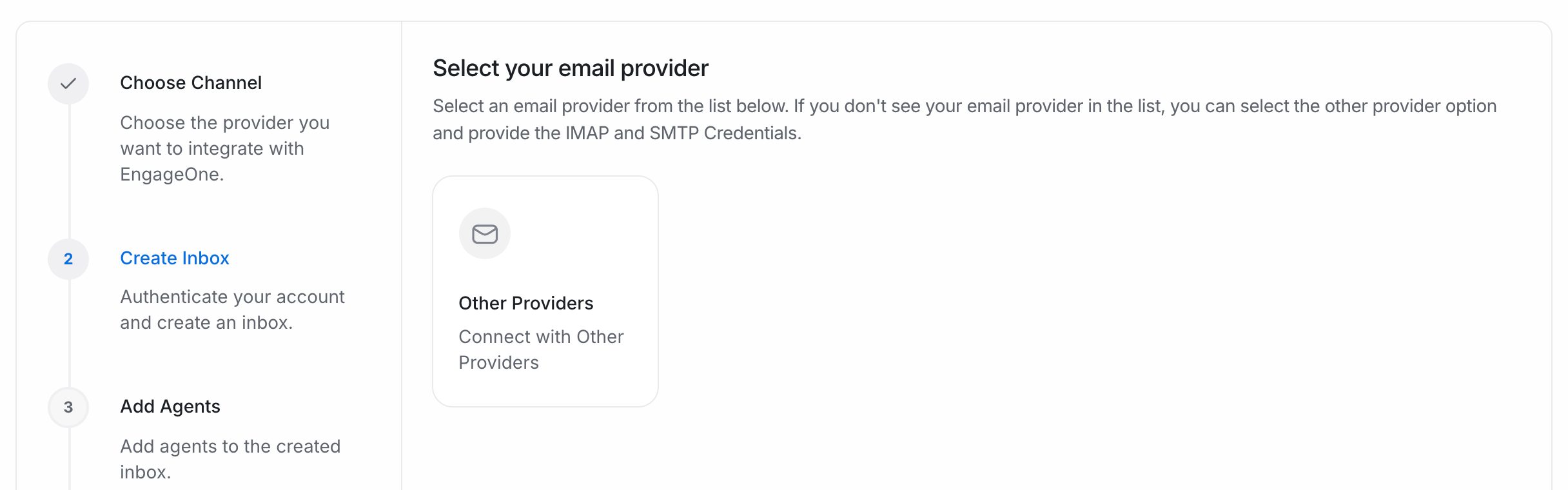
Go to Settings → Inboxes → Add Inbox → Email. You'll see the providers your installation supports.
| Option | Best for | How email is received and sent |
|---|---|---|
| Gmail and Google Workspace | Sign in with Google. No passwords to store | |
| Microsoft | Microsoft 365 and Outlook | Sign in with Microsoft. No passwords to store |
| Other Providers | Any other mail service | Email forwarding, or your own IMAP and SMTP settings |
Note: Google and Microsoft appear only when your EngageOne administrator has set them up for the installation. Other Providers is always available.
Connect Gmail or Google Workspace
- Go to Settings → Inboxes → Add Inbox → Email → Google.
- Select Sign in with Google and sign in to the mailbox you want to connect.
- Accept the permissions Google asks for. You return to EngageOne when it's done.
- Pick the agents for this inbox and select Add agents.
Connect Microsoft 365 or Outlook
- Go to Settings → Inboxes → Add Inbox → Email → Microsoft.
- Select Sign in with Microsoft and sign in to the mailbox you want to connect.
- Accept the permissions Microsoft asks for.
- Pick the agents for this inbox and select Add agents.
Tip: If the sign-in later expires, for example after a password change, the inbox asks you to reauthorize. Sign in again with the same mailbox.
Connect any other provider
- Go to Settings → Inboxes → Add Inbox → Email → Other Providers.
- Enter a Channel Name and the Email address customers write to.
- Select Create Email Channel, then add your agents.
- Choose how EngageOne receives your email:
- Forwarding: if forwarding is available on your installation, the last screen shows an address under Forward emails to this address:. Set your mailbox to forward all incoming mail there.
- IMAP: follow the steps below.
- Set up SMTP so replies are sent from your own address.
Add IMAP and SMTP
- Open Settings → Inboxes, select the email inbox and open the Configuration tab.
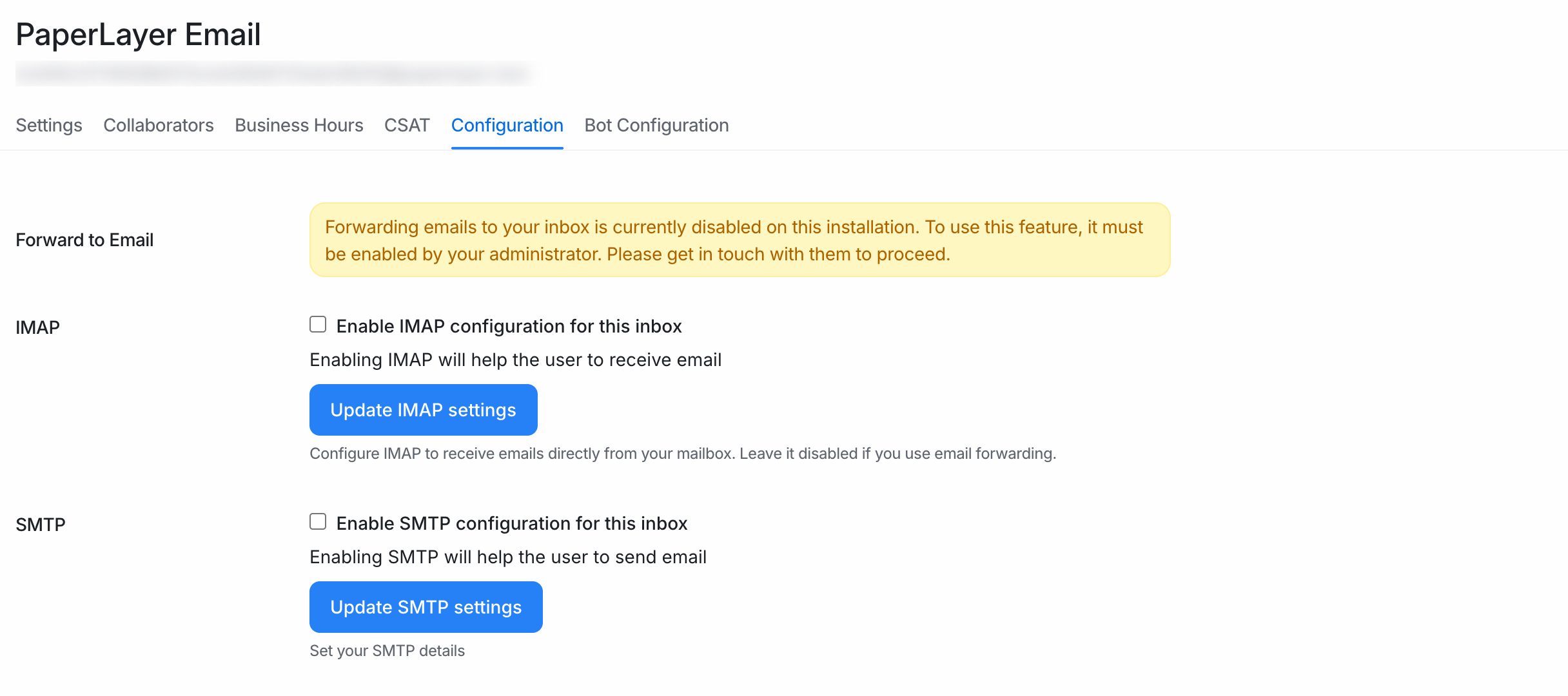
- Under IMAP, turn on Enable IMAP configuration for this inbox. Fill in Address, Port, Login and Password, and set Enable SSL. Select Update IMAP settings.
- Under SMTP, turn on Enable SMTP configuration for this inbox. Fill in Address, Port, Login, Password and Domain, then choose the Encryption (SSL/TLS or STARTTLS), Open SSL Verify Mode and Authentication. Select Update SMTP settings.
- Send a test email to the address from another mailbox and check that it appears in the inbox.
- Reply from EngageOne and check that the reply lands in the same thread.
Typical values (check your provider's help pages for the exact ones):
| Setting | IMAP | SMTP |
|---|---|---|
| Address | imap.yourprovider.com |
smtp.yourprovider.com |
| Port | 993 |
587 |
| Security | Enable SSL | STARTTLS |
| Login | The full mailbox address | The full mailbox address |
Important: If your provider uses two-step sign-in, create an app password and use it for both IMAP and SMTP.
What's supported
| Feature | Supported | Notes |
|---|---|---|
| Receive and reply to emails | Yes | |
| Email threading | Yes | Replies are matched to the right conversation |
| Attachments and inline images | Yes | Both ways |
| CC and BCC on replies | Yes | Add them in the reply box |
| Agent name or business name as sender | Yes | Enable Agent Name in Email in the inbox settings |
| Business hours and CSAT | Yes | Set in the Business Hours and CSAT tabs |
Good to know
- Each email address can be connected to only one inbox.
- An Other Providers inbox without forwarding or IMAP doesn't receive new email.
- Without SMTP, replies are sent from the installation's default sender address, not yours. Turn on SMTP so customers see your address.
Troubleshooting
| Problem | Likely cause | Fix |
|---|---|---|
| New emails don't appear | IMAP is off or the details are wrong | Check the Configuration tab and test the login |
| Email stopped after a password change | The saved password or sign-in is out of date | Update the password, or reauthorize Google or Microsoft |
| Replies come from a different address | SMTP is off | Turn on SMTP for the inbox |
| The Configuration tab says forwarding is disabled | Forwarding isn't enabled on your installation | Use IMAP and SMTP, or ask your administrator |
| A customer reply opened a new conversation | Their mail app removed the reply headers | Reply in the new conversation. The earlier one stays in the contact's history |